First Look at the Web UI
This guide maps the live Posterizarr navigation to the tasks described in the other guides. Most pages are read-only until you explicitly save, start a run, or confirm an upload or cleanup action.
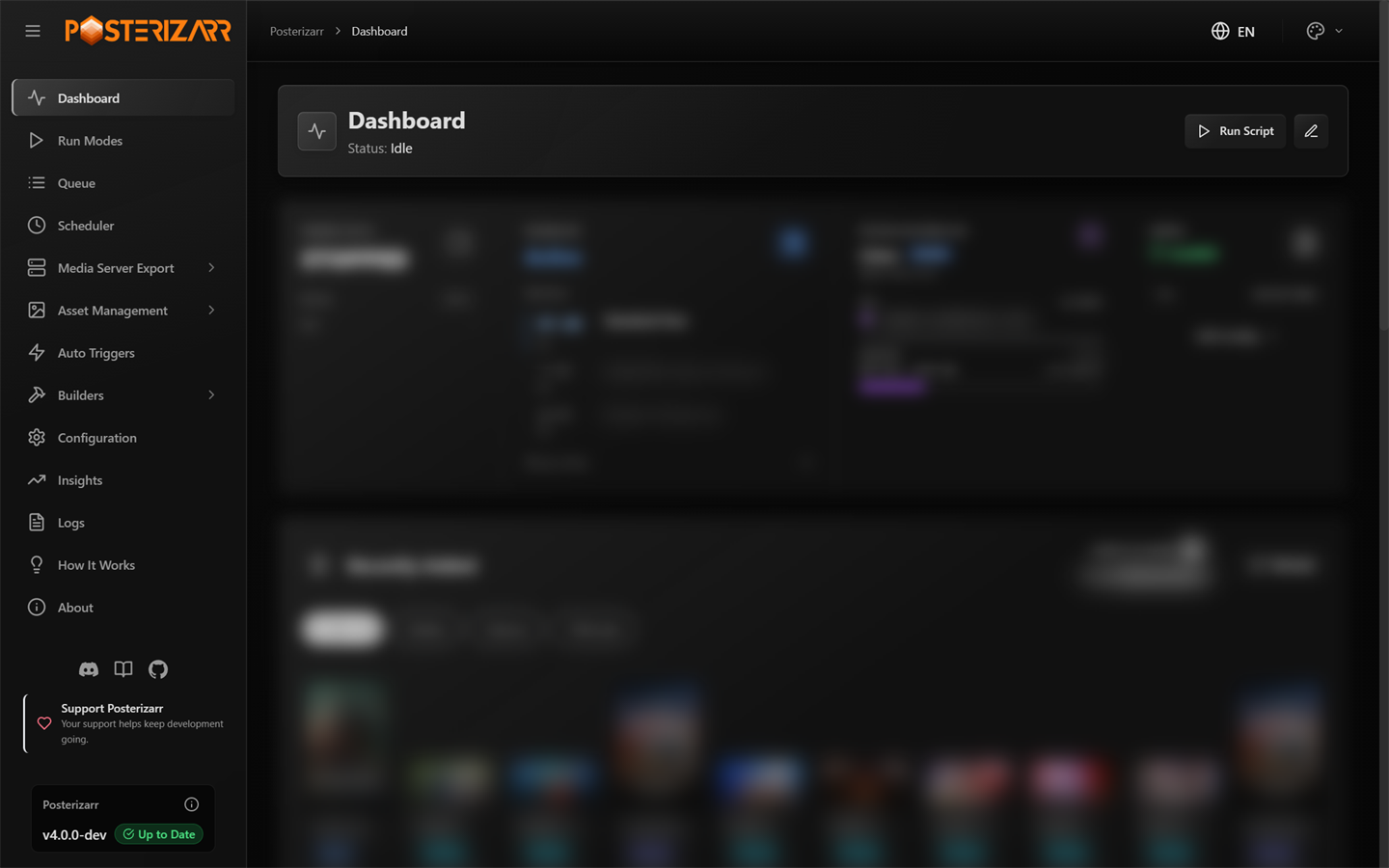
Open Dashboard from the left sidebar after starting Posterizarr. The dashboard summarizes engine and scheduler status, system/configuration state, recent assets, and the live log feed.
Main Navigation
| Sidebar entry | What you do there |
|---|---|
| Dashboard | Check engine state, upcoming schedules, configuration status, recent assets, and live logs. Run Script opens Run Modes. |
| Run Modes | Start a normal or testing run, back up or restore artwork, sync supported servers, update logos, or create one asset manually. |
| Queue | Review queued work and its state; run or clear queued items. |
| Scheduler | Create and manage timed tasks. For Docker, set RUN_TIME=disabled before enabling the UI scheduler. |
| Media Server Export | Expand for Plex or Jellyfin / Emby cached library and episode records. Refresh or import data here; this is not an artwork-generation run. |
| Asset Management | Expand for artwork galleries, Manual Assets, Backup Assets, Action Center, and Test Gallery. Plex Image Quarantine is available when its Plex cleanup data and configuration make it applicable. |
| Auto Triggers | Configure Tautulli, Sonarr, and Radarr events. Native Webhook setup is recommended; Docker and Windows instructions are retained for legacy arrangements. |
| Builders | Expand for Collection Builder, Logo Builder, Overlay Builder, Dynamic Overlays, and Blueprint Builder. |
| Configuration | Search and edit System, Providers, Media Servers, Global Visuals, Posters, Seasons, Backgrounds, Title Cards, and Collections settings. |
| Insights | Explore run history with date-range filters (24H–ALL), aspect-aware asset thumbnails, charts, runtime and asset statistics, exports, System Databases + read-only Database Records browsing, and optional demo data. |
| Logs | Search, filter, download, and gather support logs. |
| How It Works / About | Read the in-app workflow overview, inspect live runtime environment details, copy sanitized System Info, browse inline GitHub release changelogs, and reopen the post-update What's New dialog. |
The general first-run wizard appears automatically when setup is incomplete; it is not a sidebar destination. Its steps and save behavior are covered in First-time setup. The separate Dynamic Overlays guide is under Builders > Dynamic Overlays > Setup Wizard. Selecting Dynamic Overlays in the first-run wizard enables it with Dry Run and opens this guide after Finish. Its preset/import actions have different effects, described in the Dynamic Overlays guide.
Connect a Server and Providers
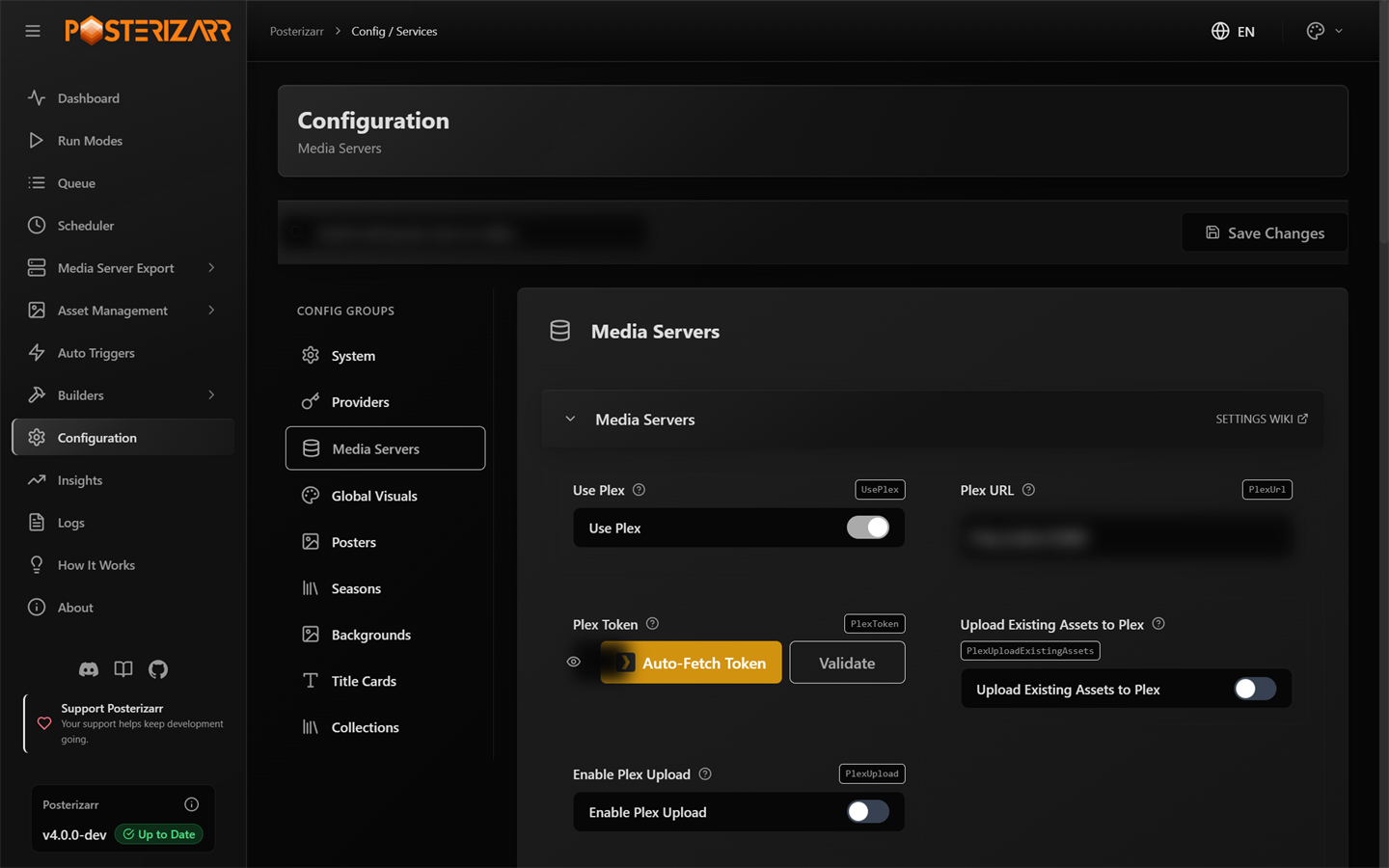
Choose Configuration in the sidebar, then Media Servers in Config Groups to enter a server URL and API credential, validate it, and select included libraries.
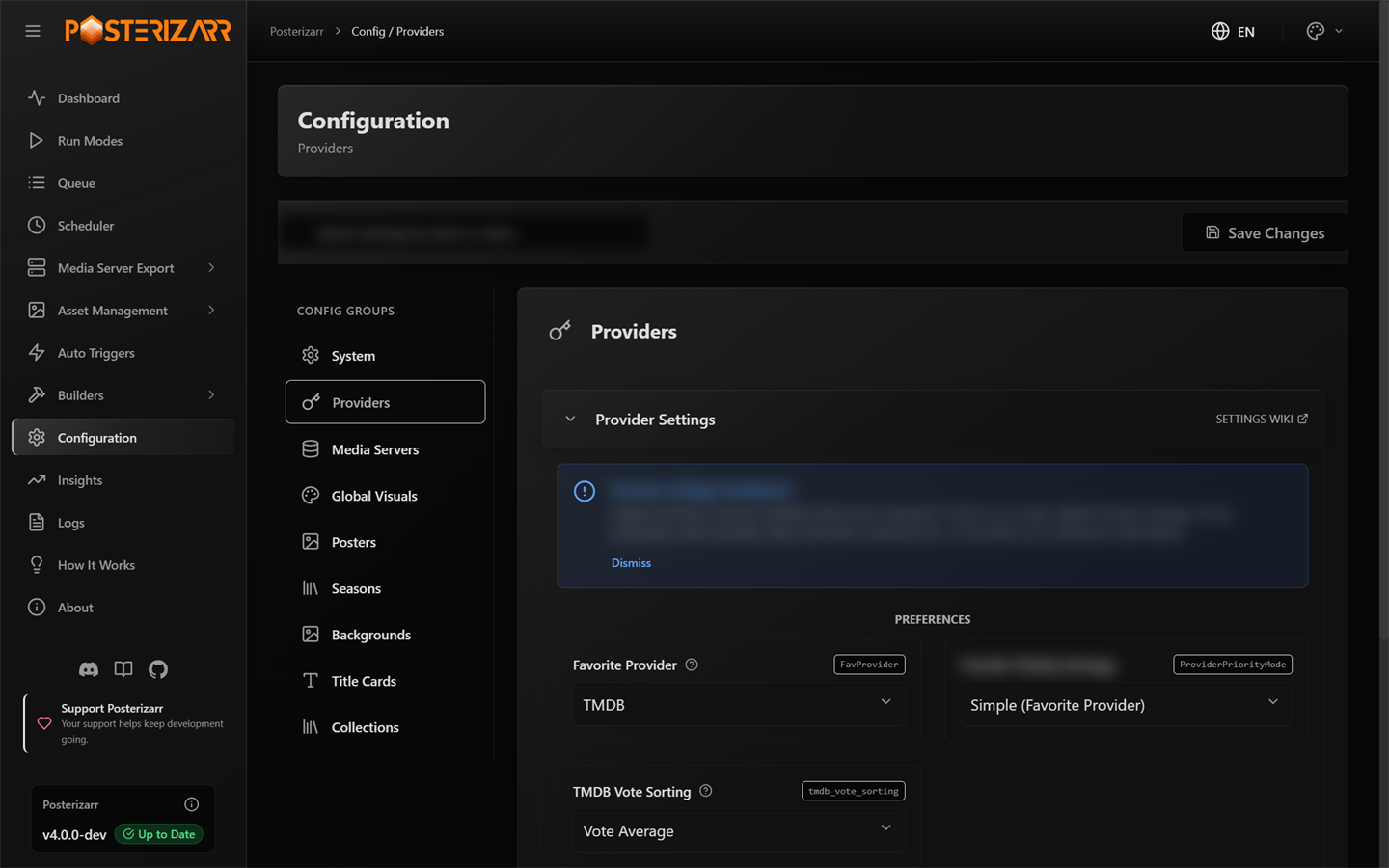
Choose Configuration > Providers to enter artwork-provider credentials and set provider priority.
Save your changes after configuring the server, providers, and a small set of artwork types. The first-time setup guide gives the recommended sequence; Configuration explains every field.
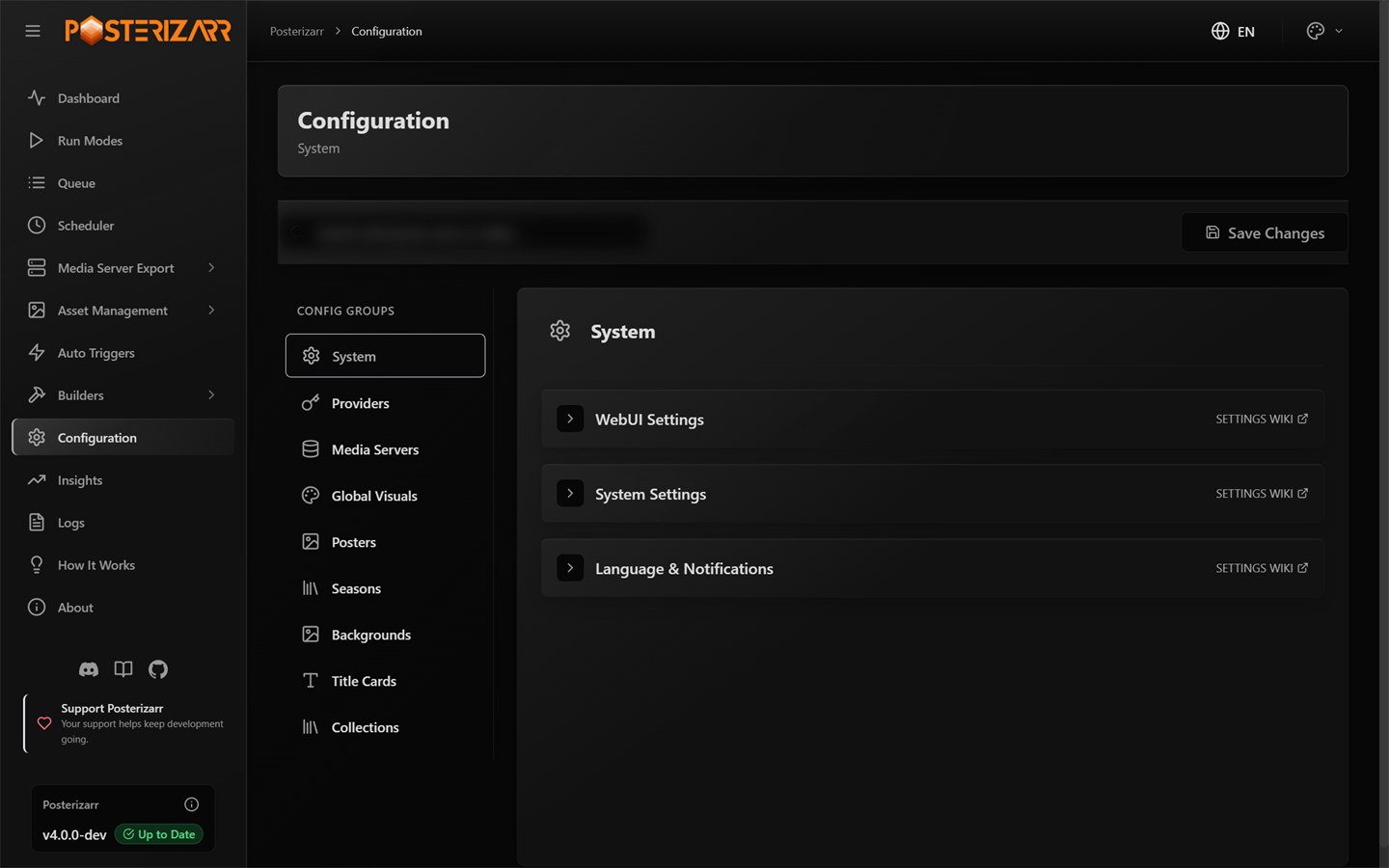
Choose Configuration > System for Web UI, path, processing, and notification settings.
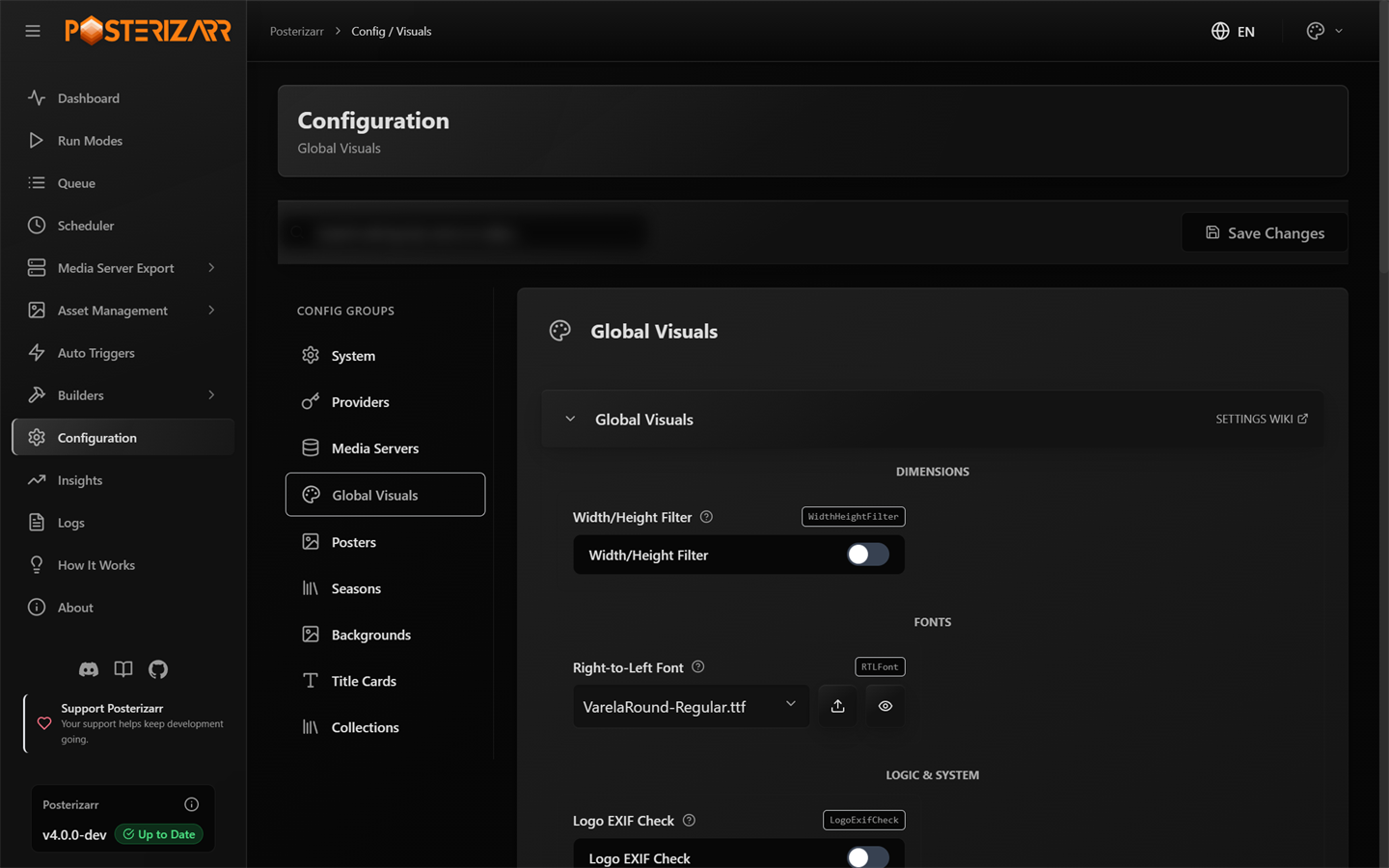
Choose Configuration > Global Visuals for shared language, image, text, logo, border, and overlay preferences.
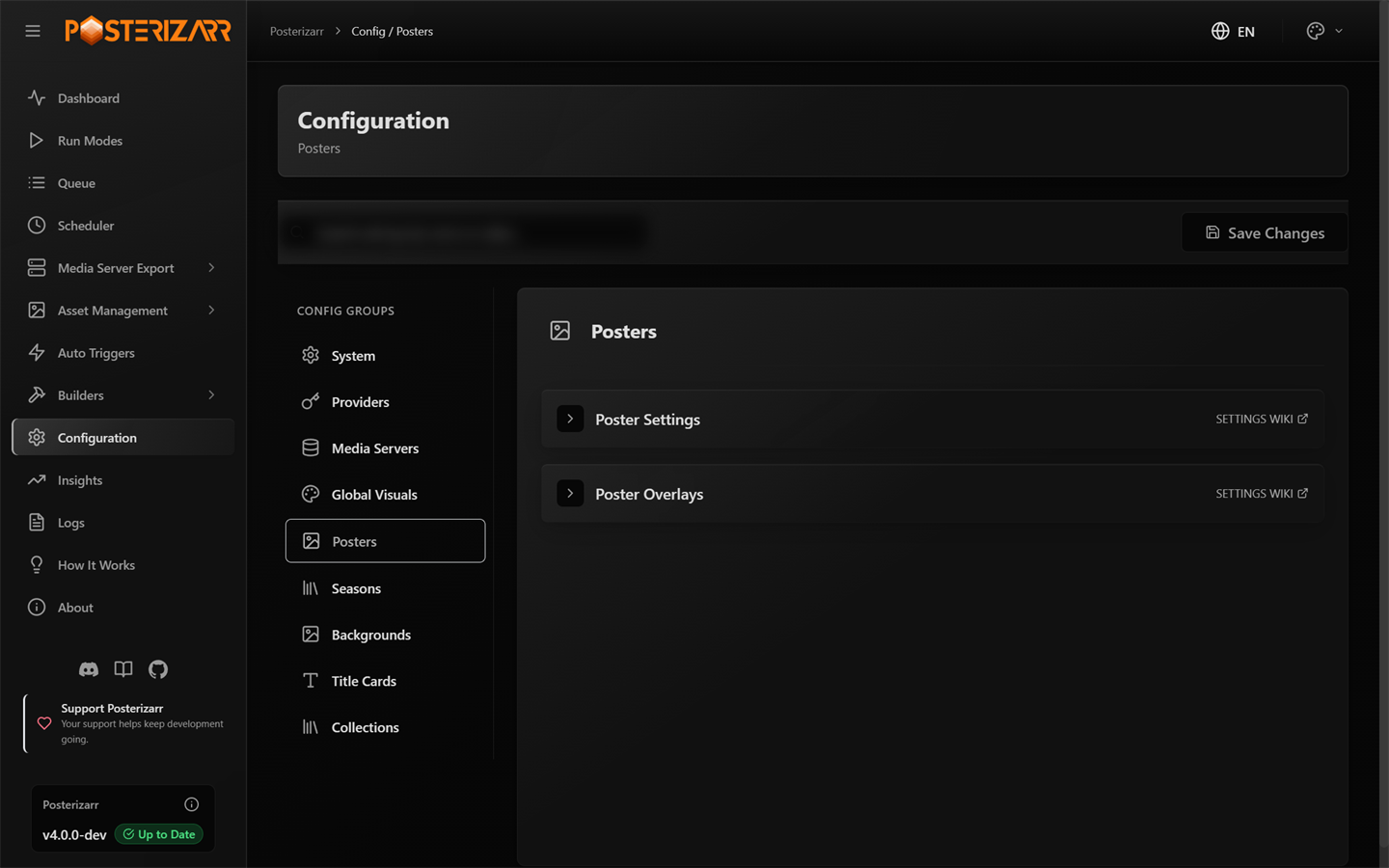
Choose Configuration > Posters to tune movie and show poster behavior.
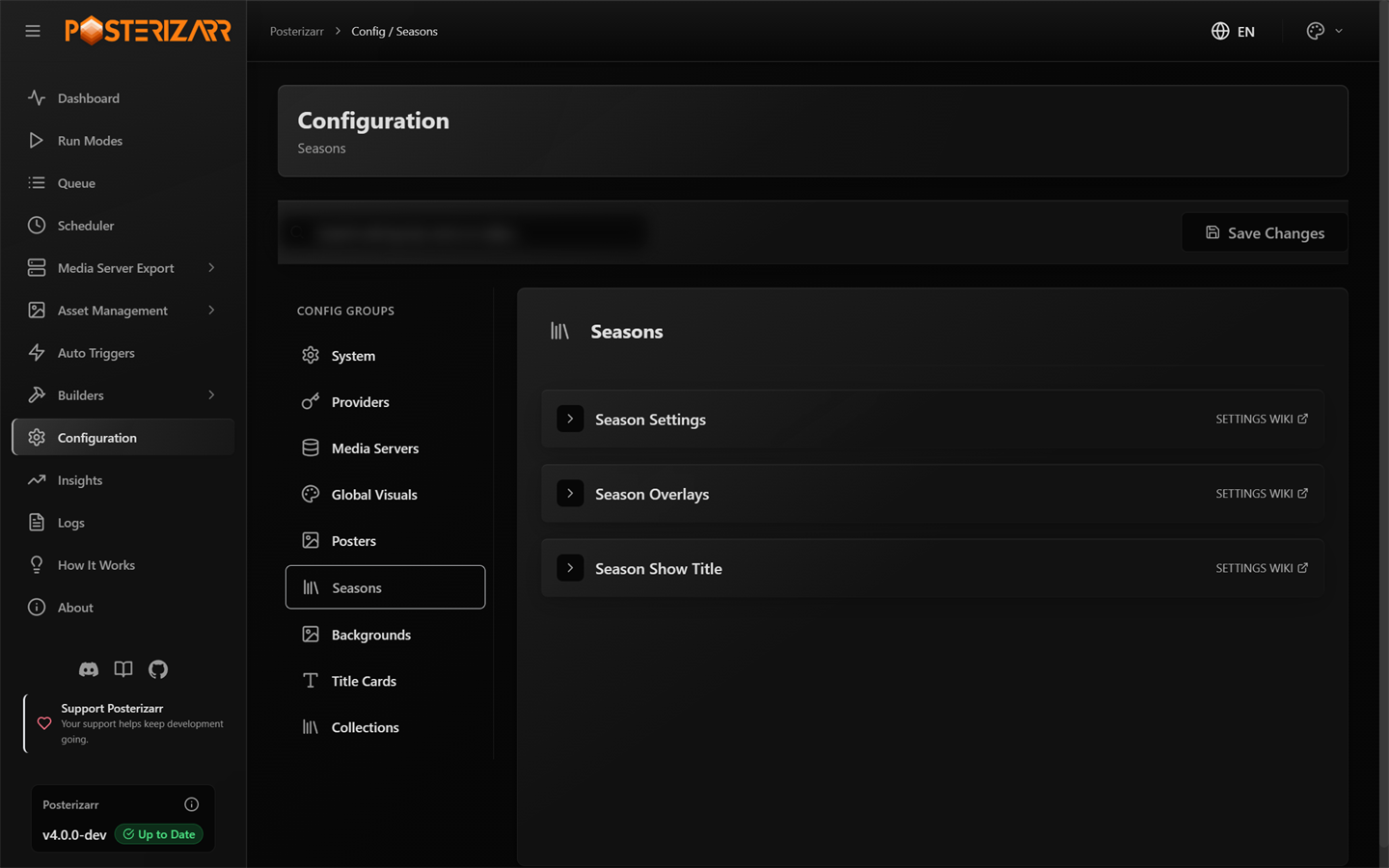
Choose Configuration > Seasons to tune season artwork and season text.
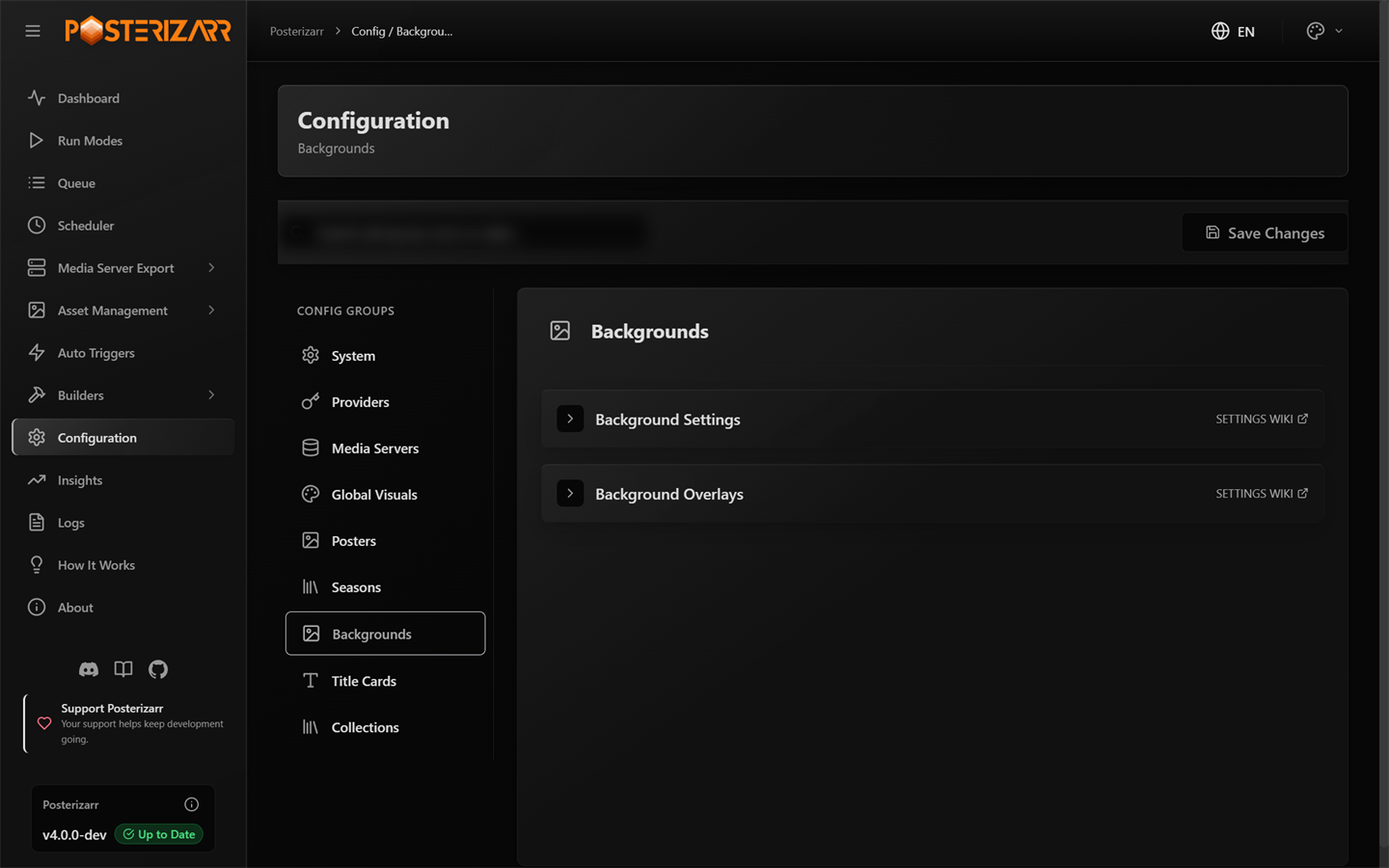
Choose Configuration > Backgrounds to tune background artwork, text, logos, and processing.
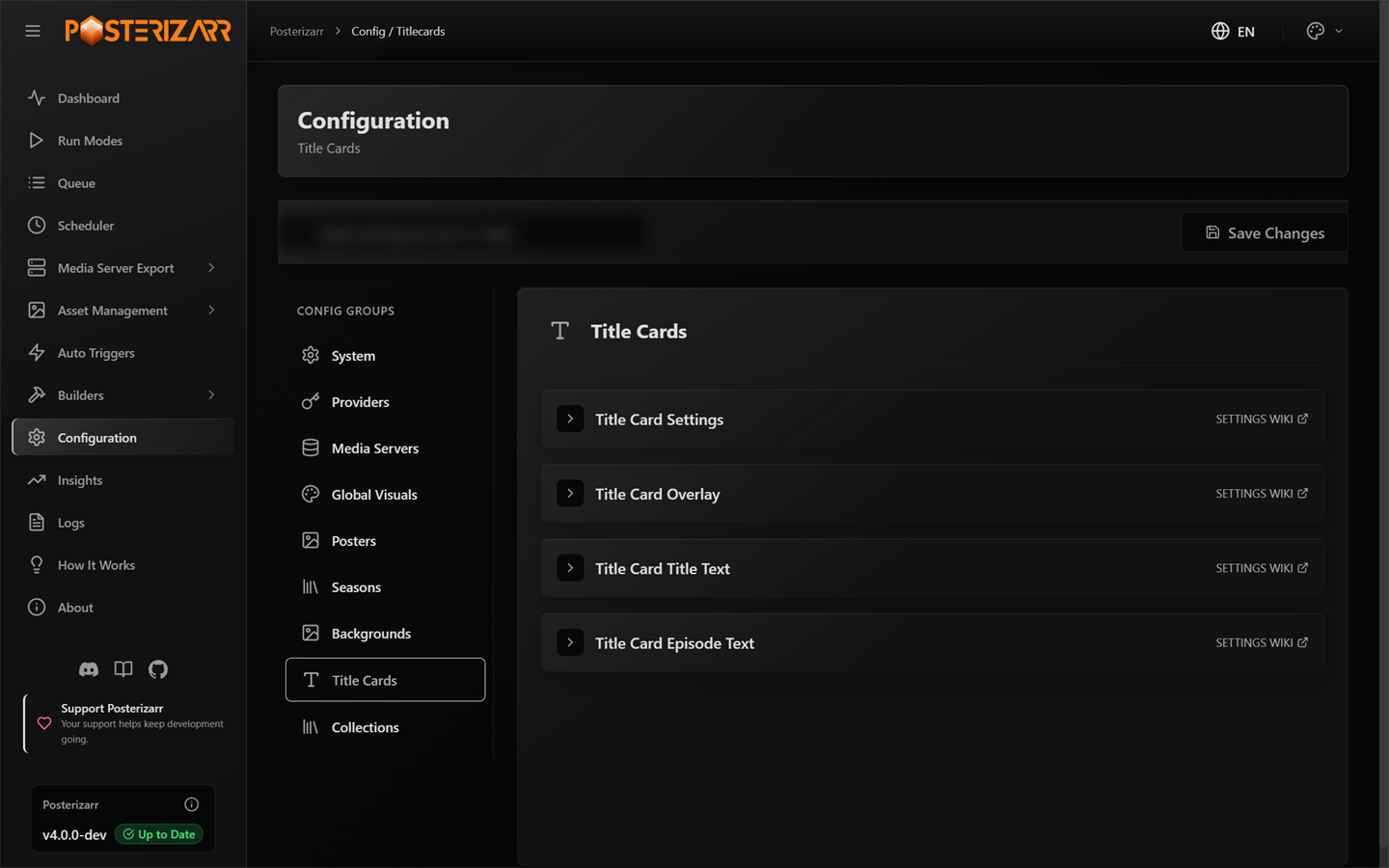
Choose Configuration > Title Cards to tune episode-card sources, text, and fallbacks.
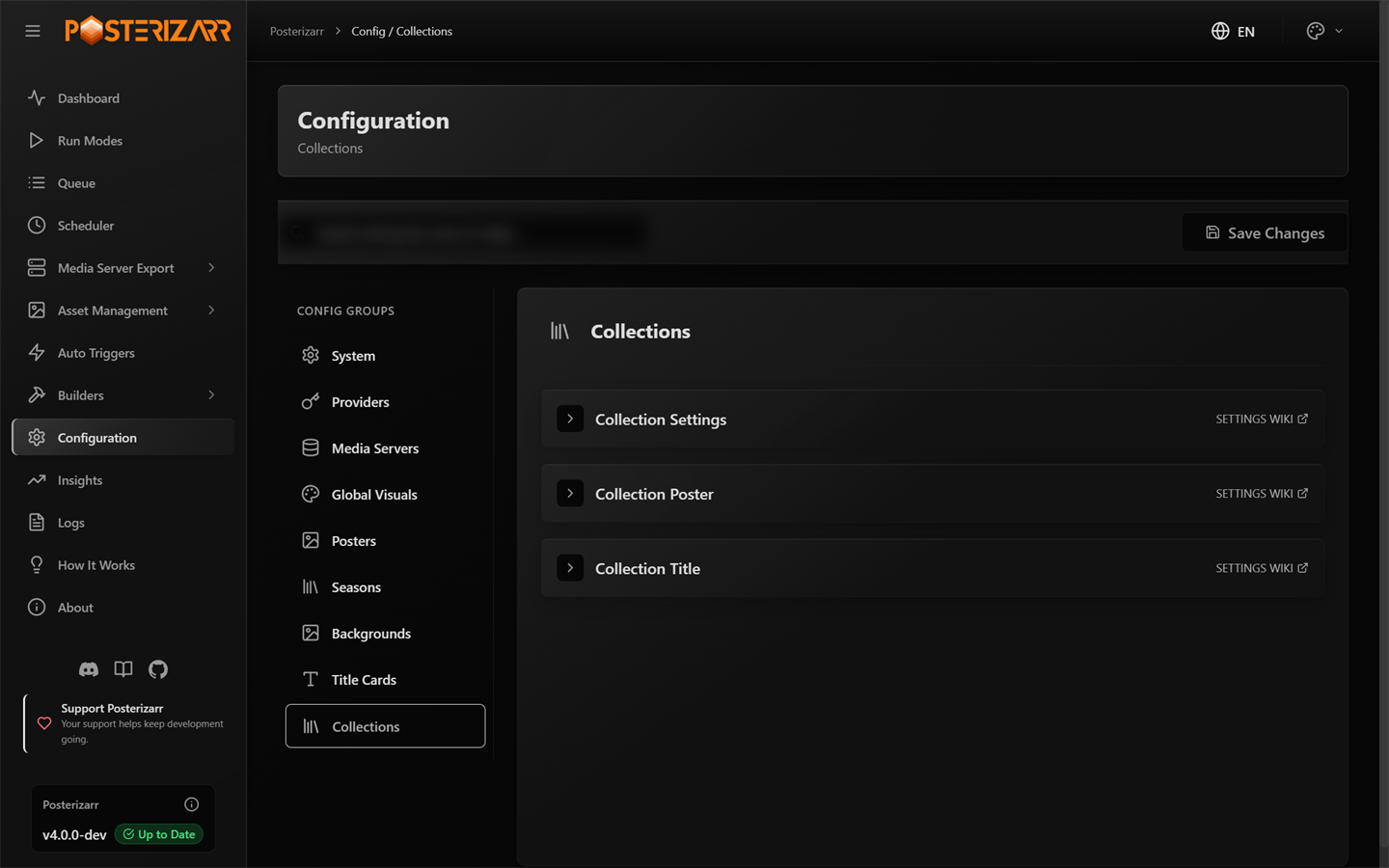
Choose Configuration > Collections to tune collection poster behavior.
Run and Review Work
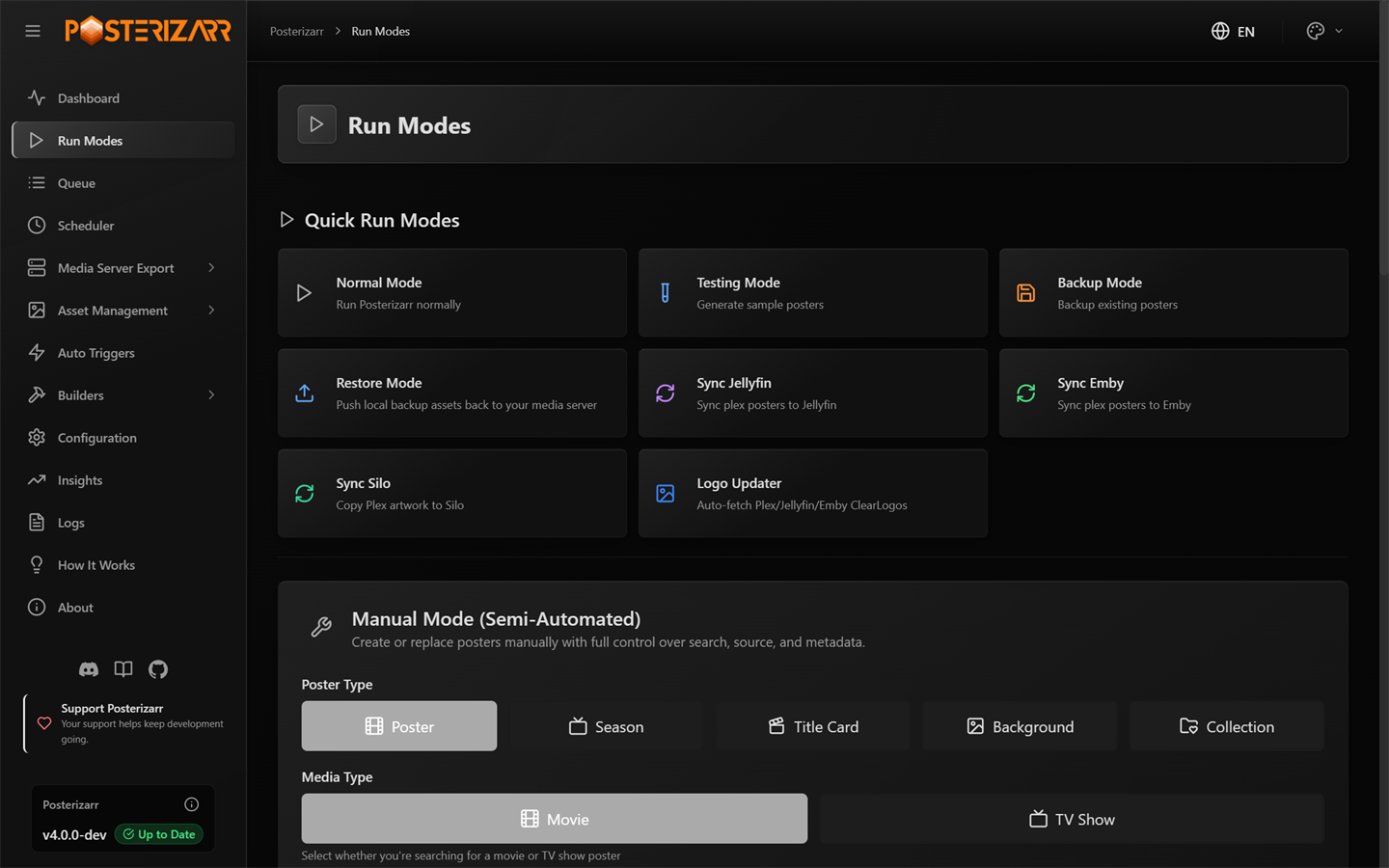
Choose Run Modes in the sidebar. Testing Mode generates sample output without uploading it; normal runs use the configured libraries and upload behavior.
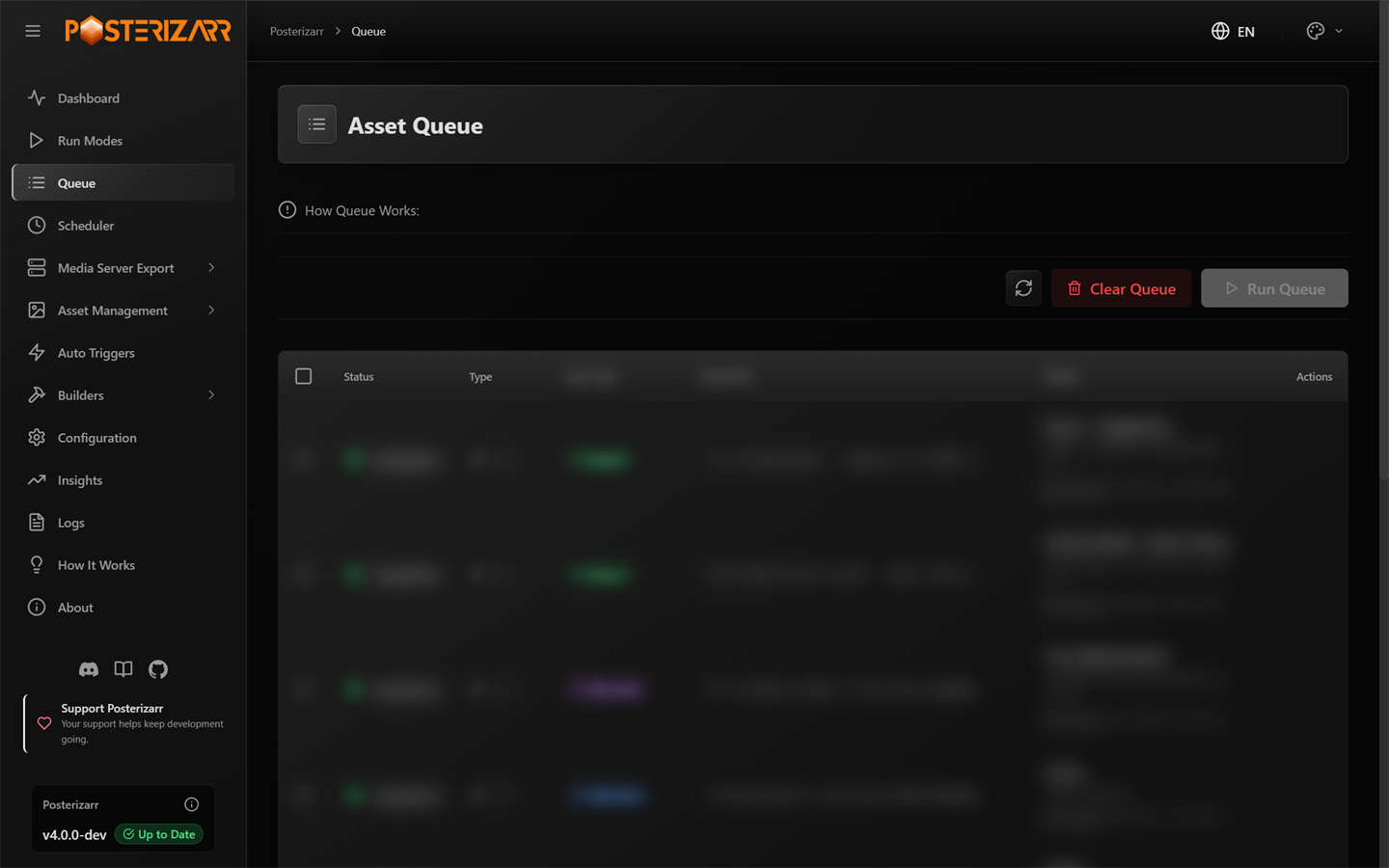
Choose Queue in the sidebar to review pending, running, and completed queue work.
Run Modes also includes backup, restore, Jellyfin/Emby/Silo sync, Logo Updater, poster reset, and manual asset creation. See Run Modes and automation for confirmations, destructive actions, scheduler behavior, and optional CLI commands.
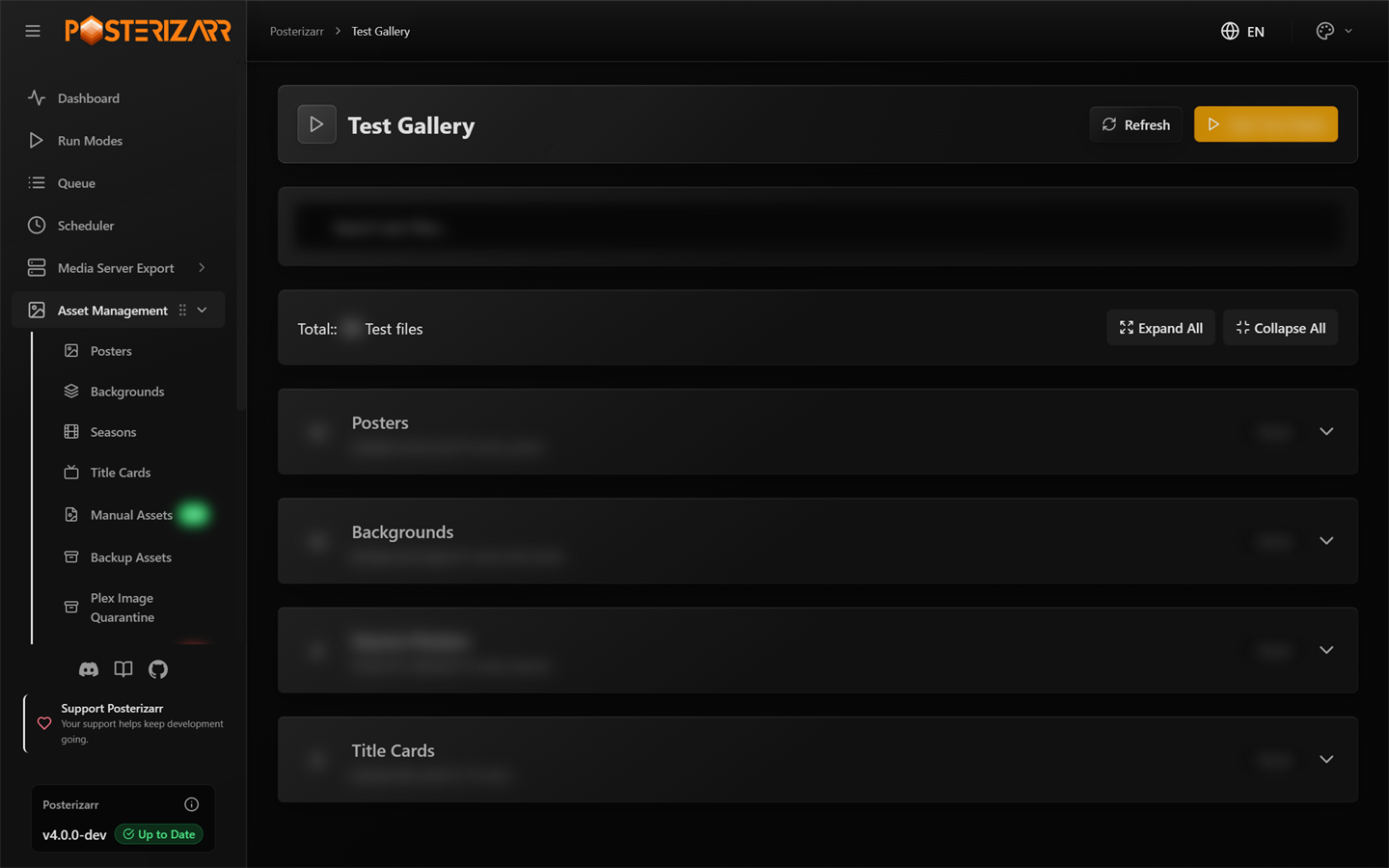
After a Testing Mode run, expand Asset Management and choose Test Gallery to inspect generated samples.
Browse and Manage Assets
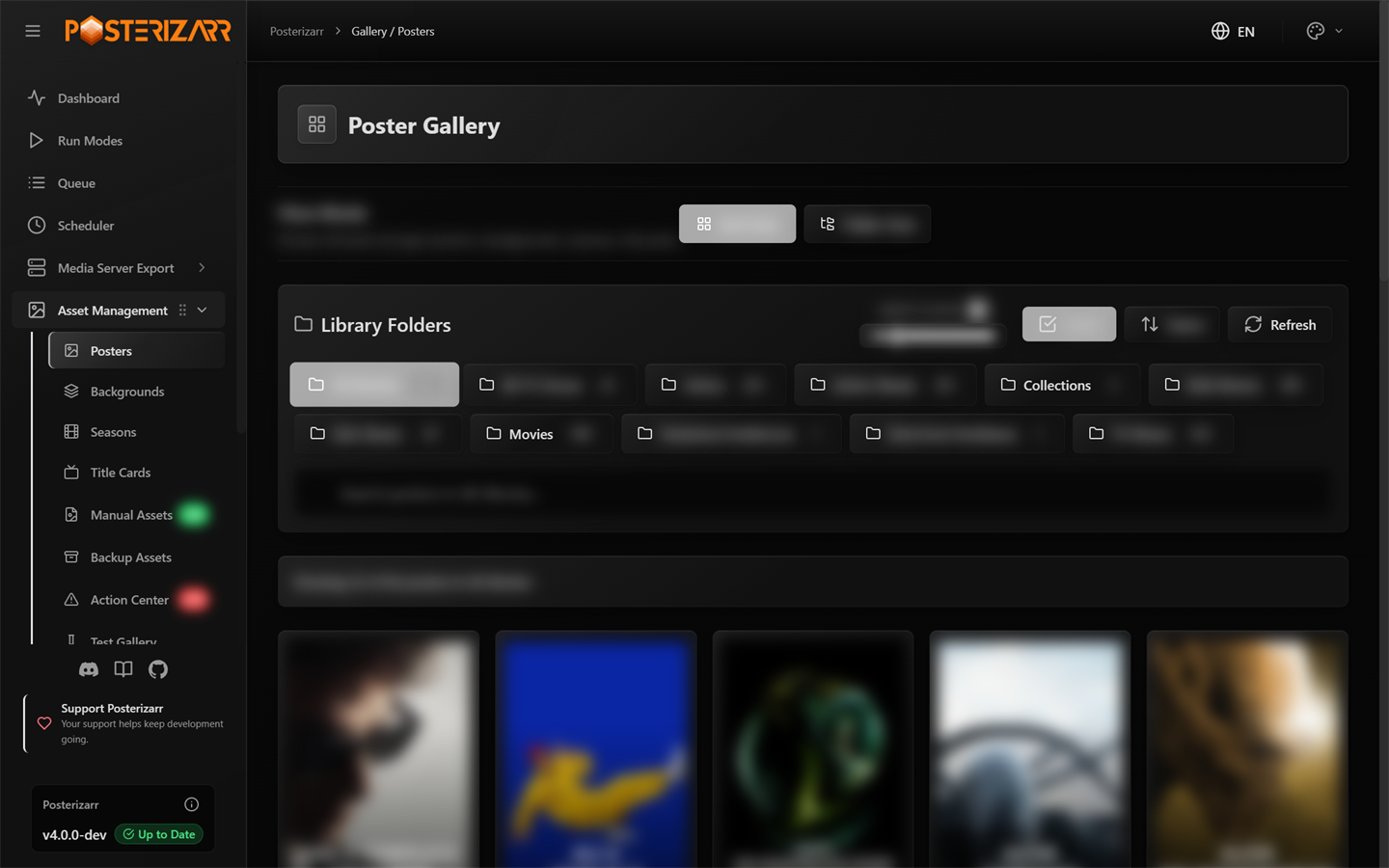
Expand Asset Management and choose Posters. The same group includes Backgrounds, Seasons, and Title Cards galleries.
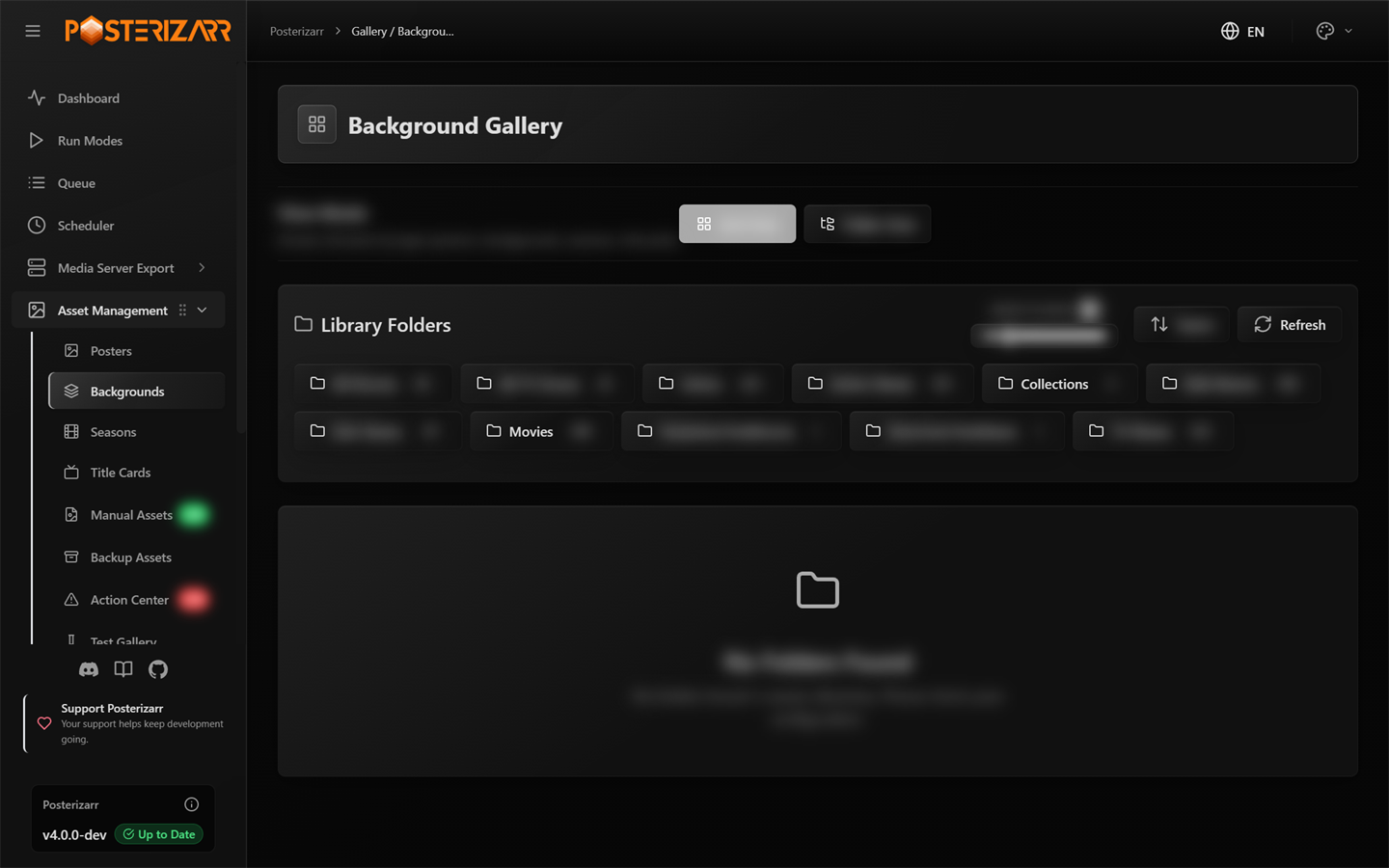
Choose Asset Management > Backgrounds to browse background artwork.
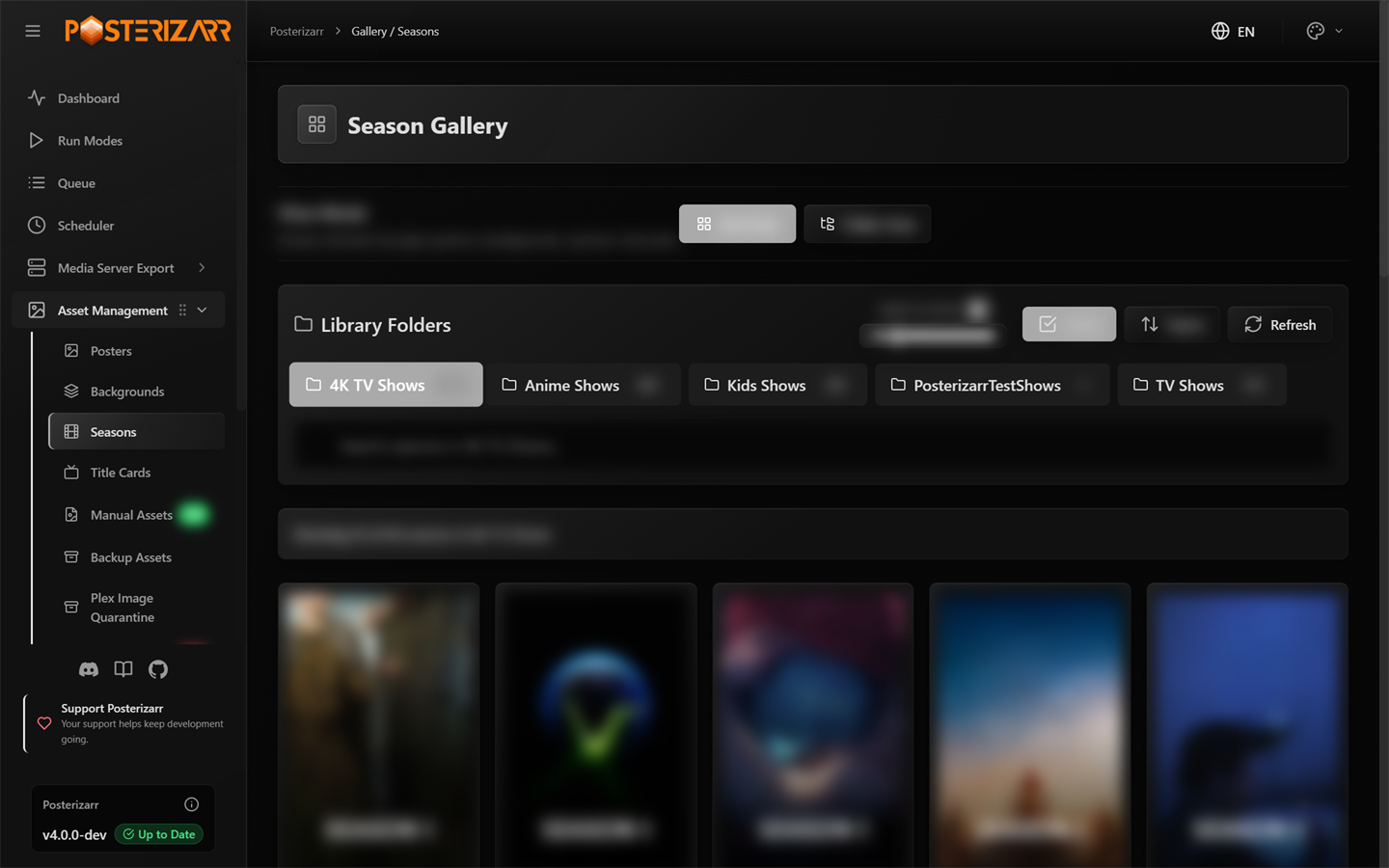
Choose Asset Management > Seasons to browse season artwork.
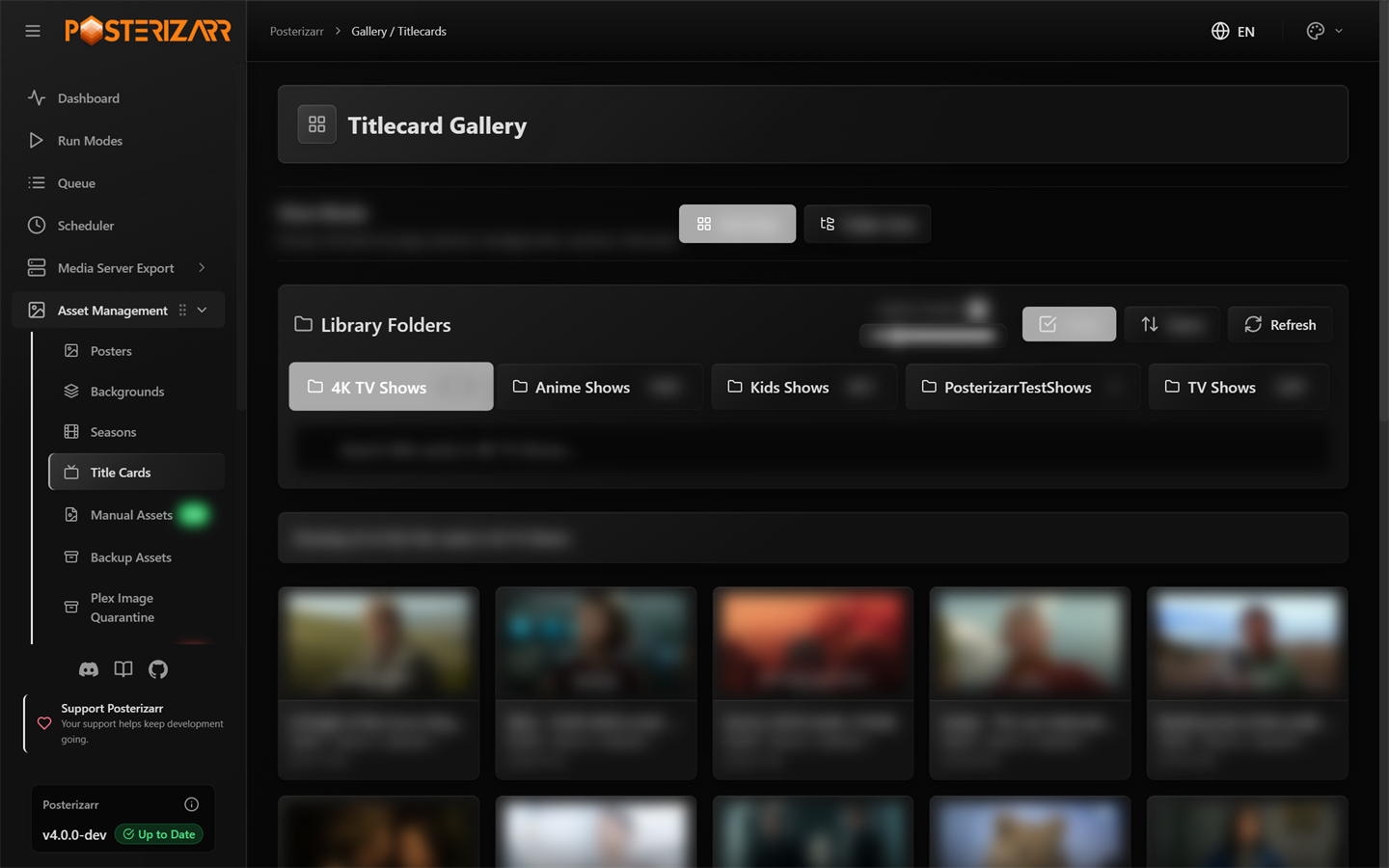
Choose Asset Management > Title Cards to browse episode titlecard artwork.
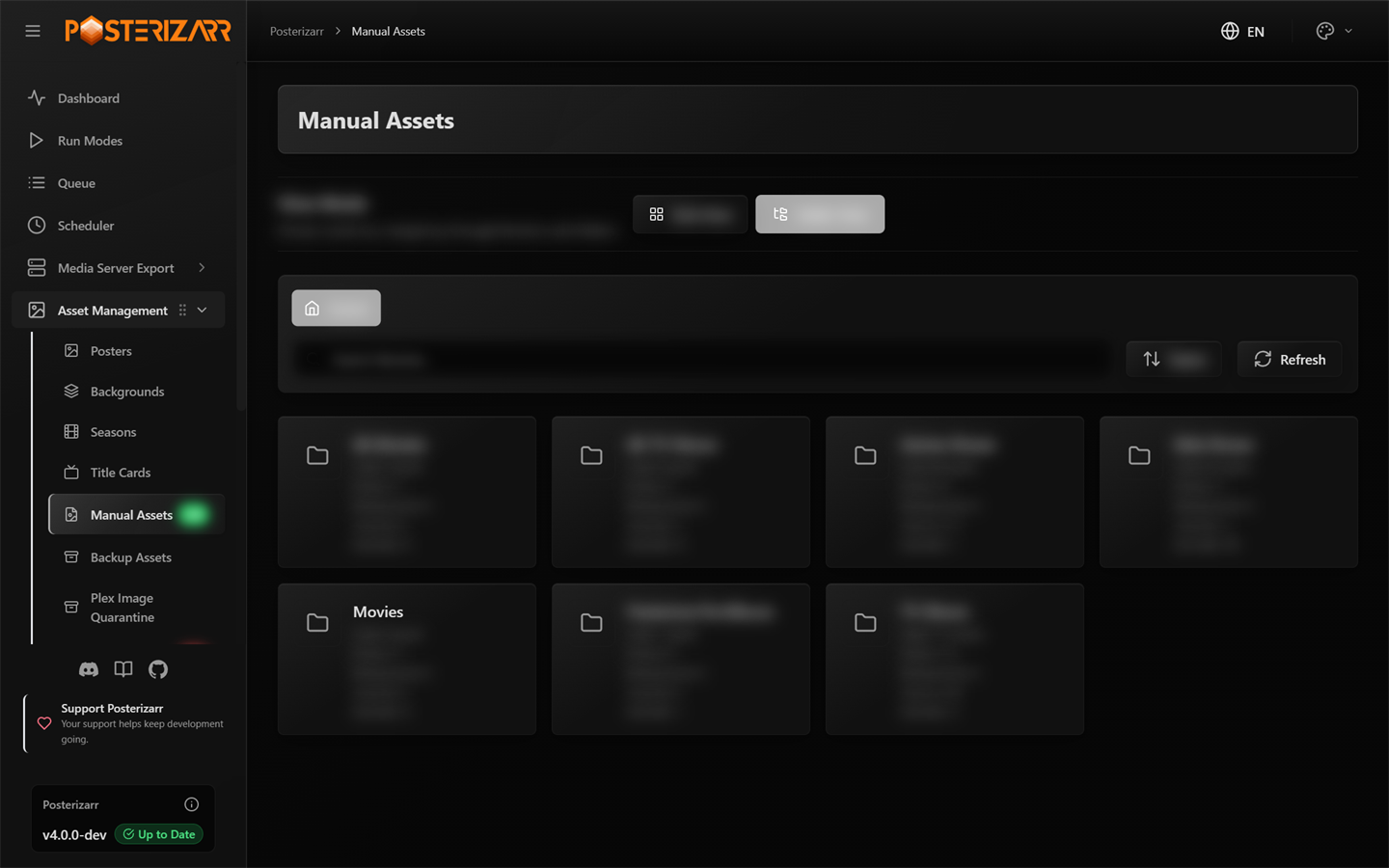
Choose Asset Management > Manual Assets to browse the local asset structure and inspect the files Posterizarr can reuse.
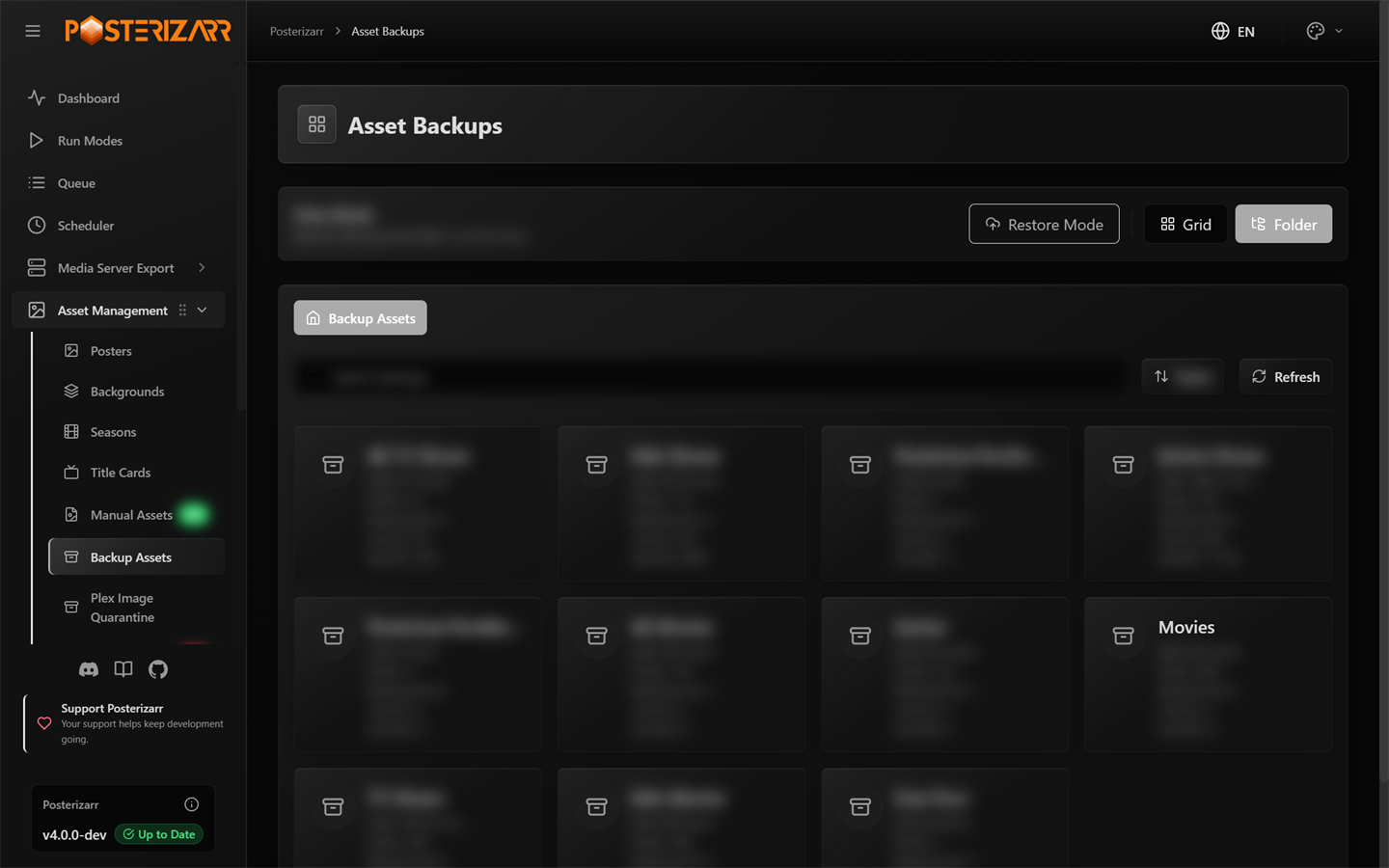
Choose Asset Management > Backup Assets to browse saved artwork backups.
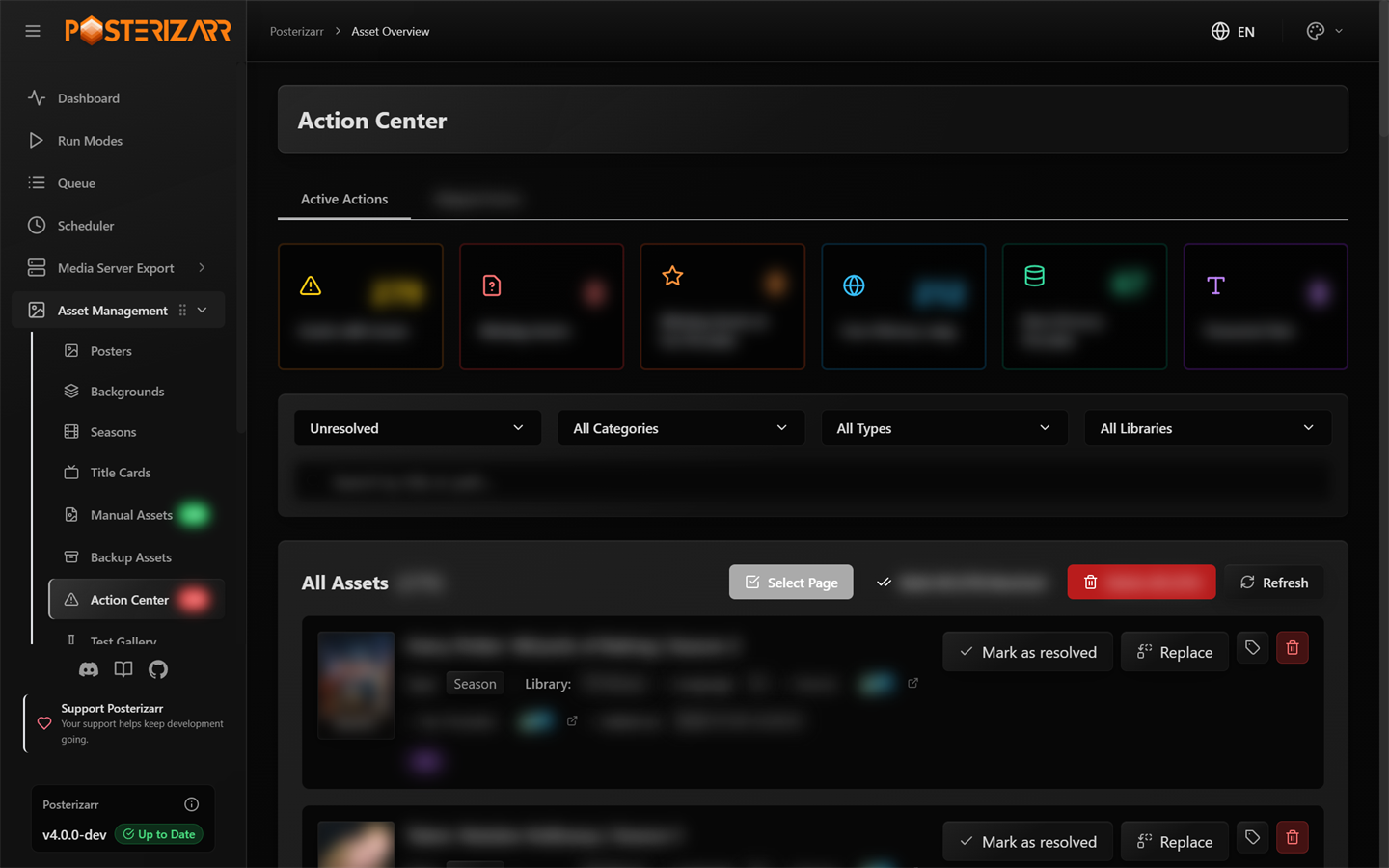
Choose Asset Management > Action Center to filter flagged assets and resolve, replace, or delete their tracking entries.
The galleries, test output, and server export have different purposes: a gallery browses available artwork, Test Gallery shows Testing Mode results, and Media Server Export browses cached metadata records. Read the Action Center guide before bulk actions and the Plex Image Cleanup guide before quarantining or removing files.
Export Library Data
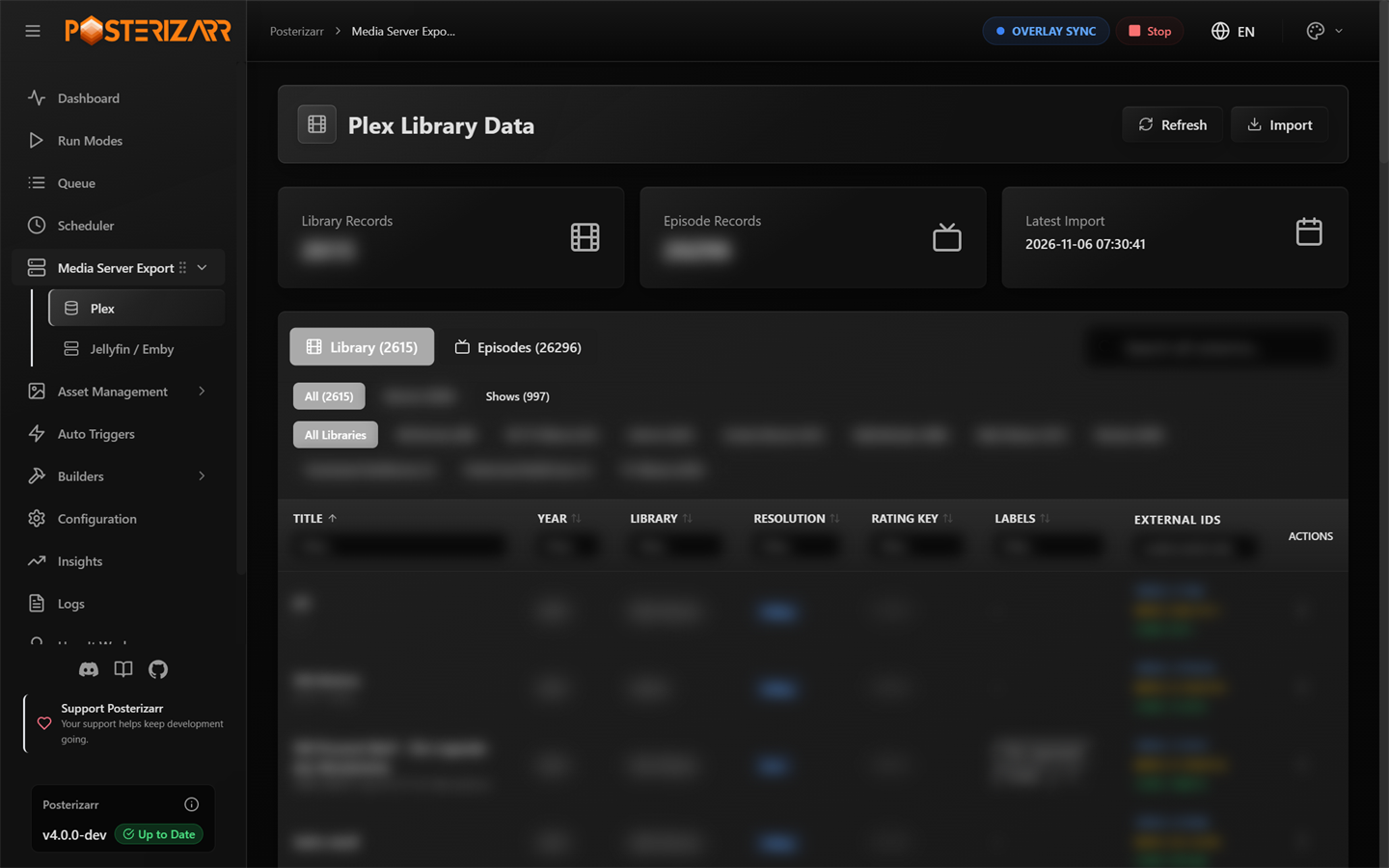
Expand Media Server Export and choose Plex to browse the cached Plex library and episode records.
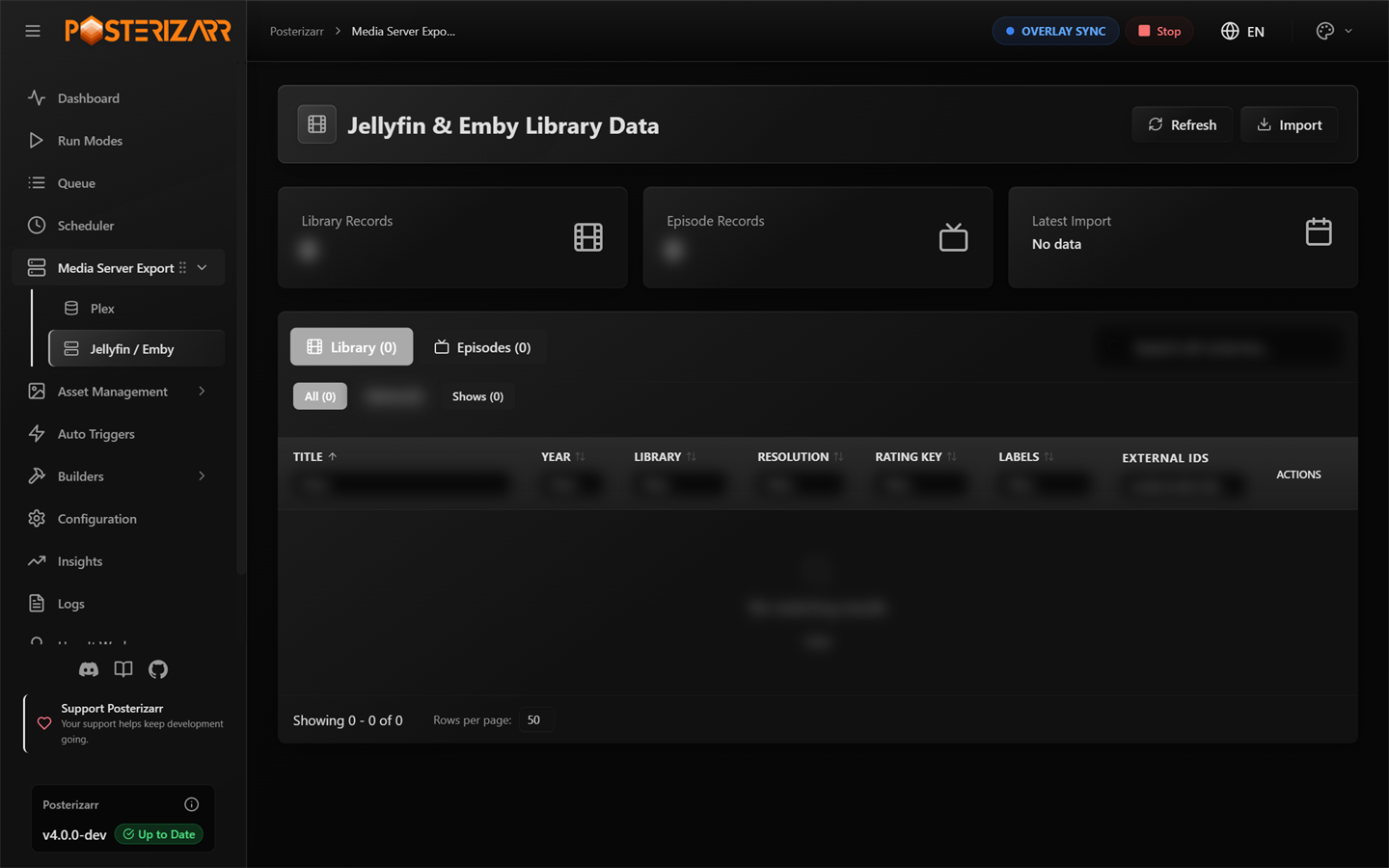
Choose Media Server Export > Jellyfin / Emby for cached records from those servers.
Use the refresh or import controls to update the export data. Endpoint behavior and response formats are in the API reference.
Build Artwork and Overlays
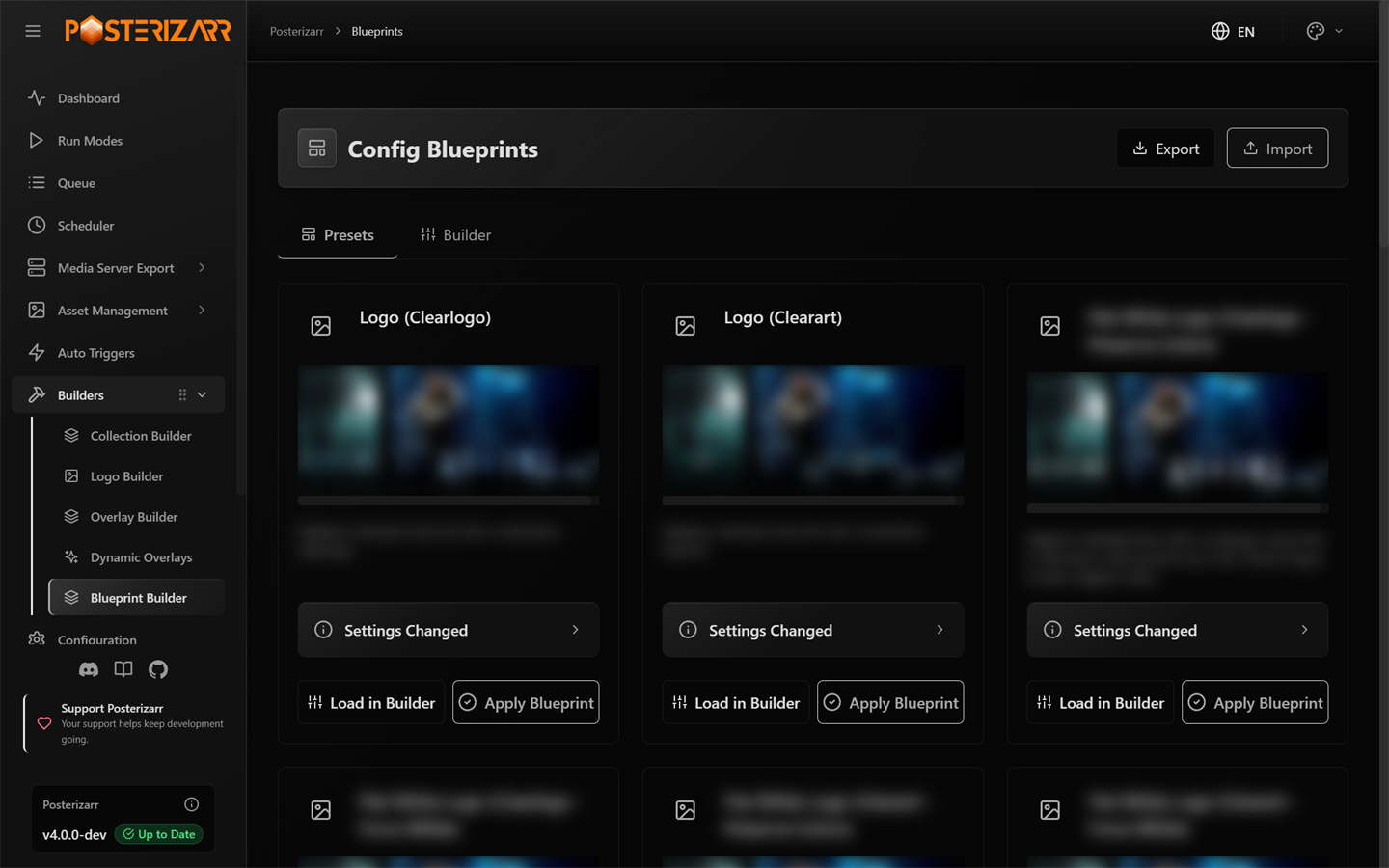
Expand Builders and choose Blueprint Builder to review and apply reusable presets.
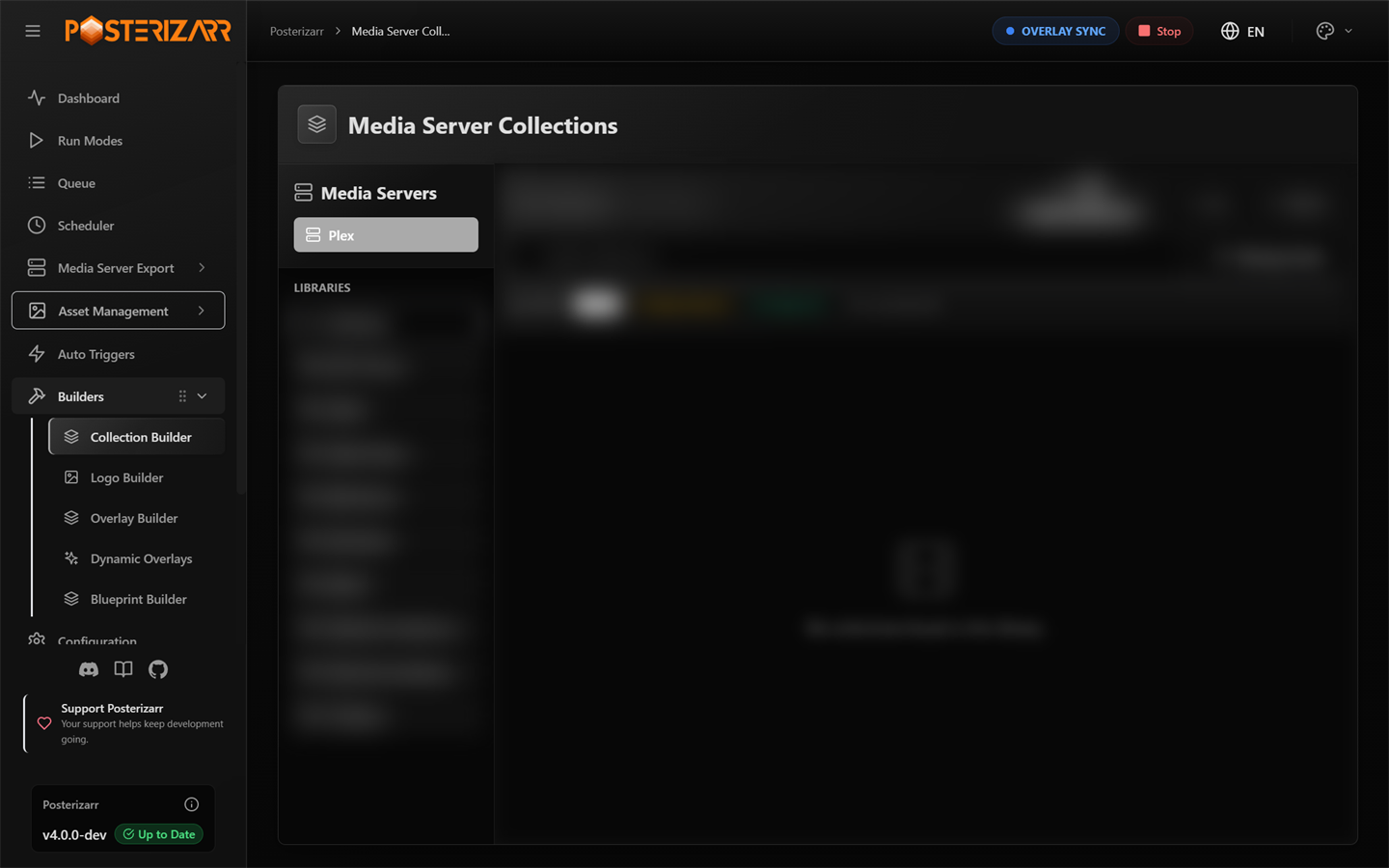
Choose Builders > Collection Builder to compare local collection artwork with Plex and review push status.
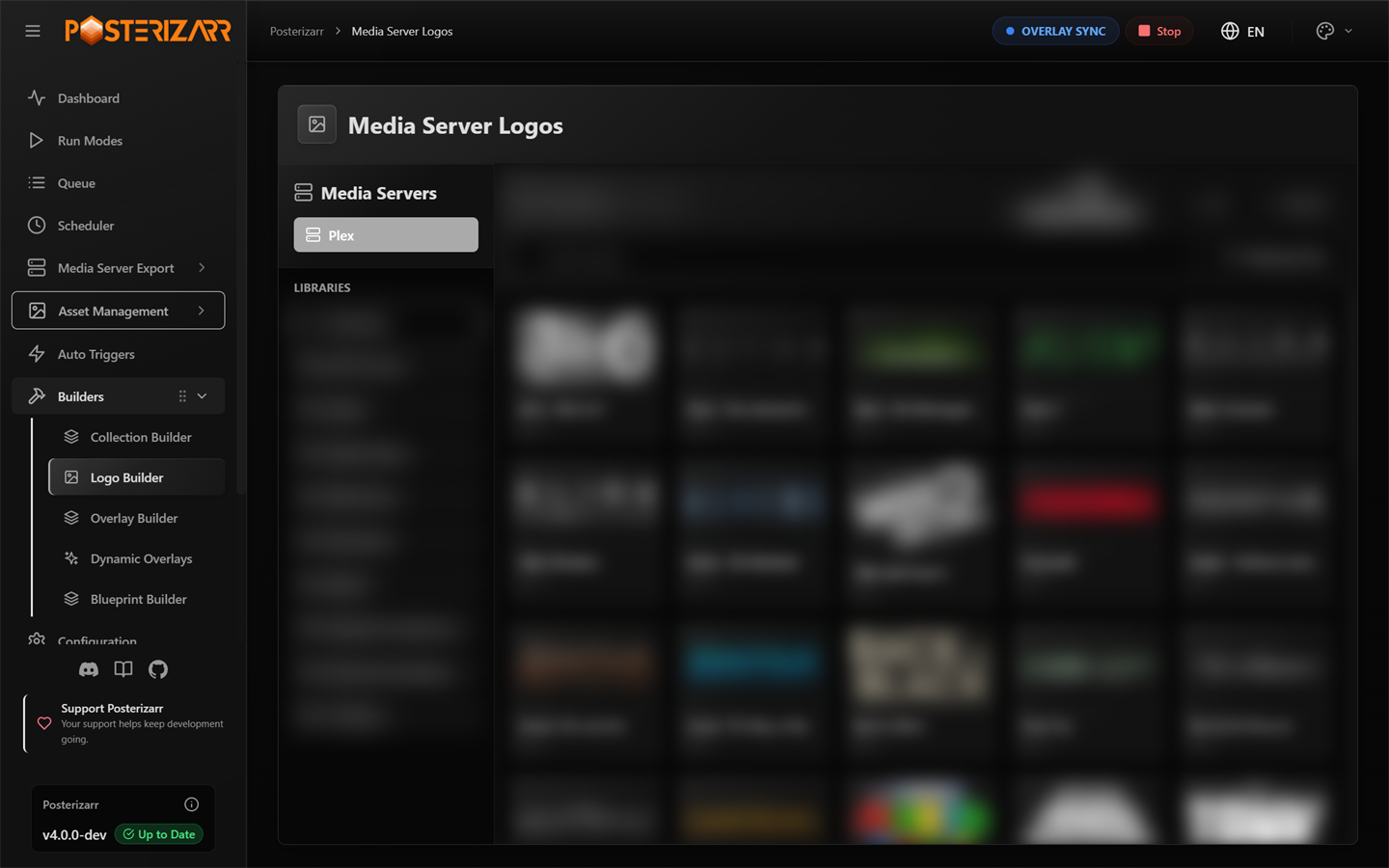
Choose Builders > Logo Builder to browse logos by server/library and search, replace, or update them.
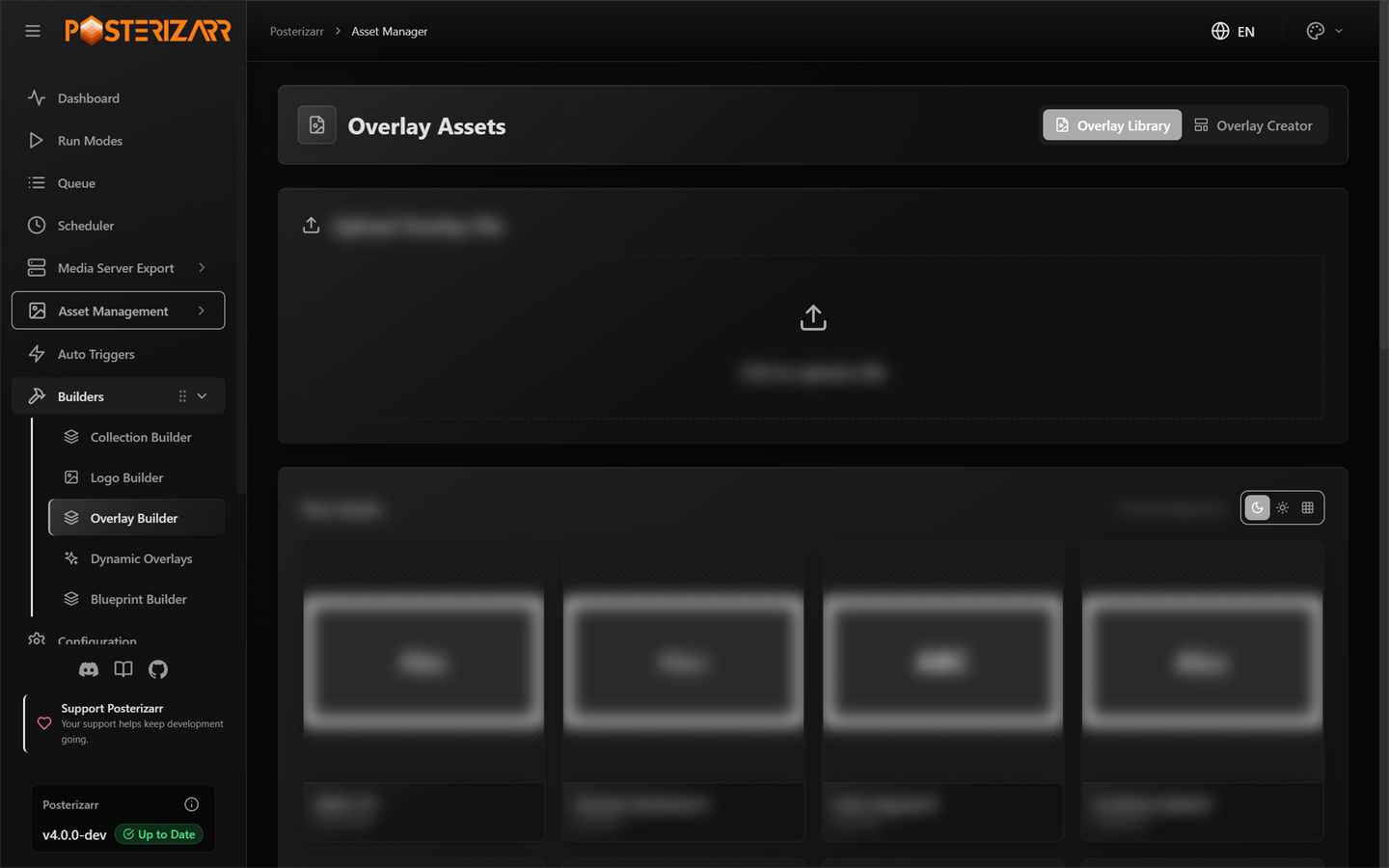
Choose Builders > Overlay Builder to browse overlay assets or open Overlay Creator.
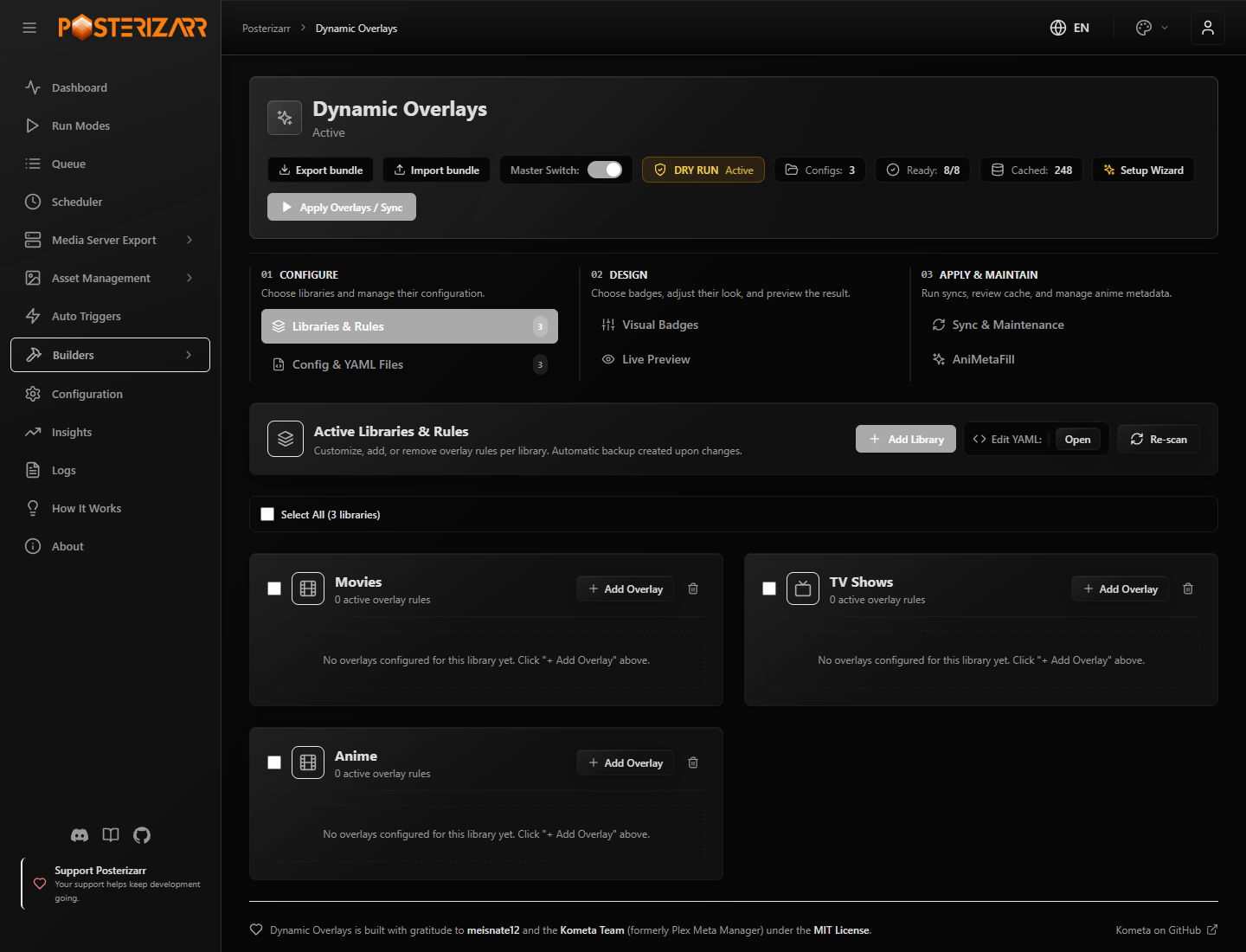
Choose Builders > Dynamic Overlays. The page groups setup, rule configuration, badge design, preview, synchronization, and cache tools.
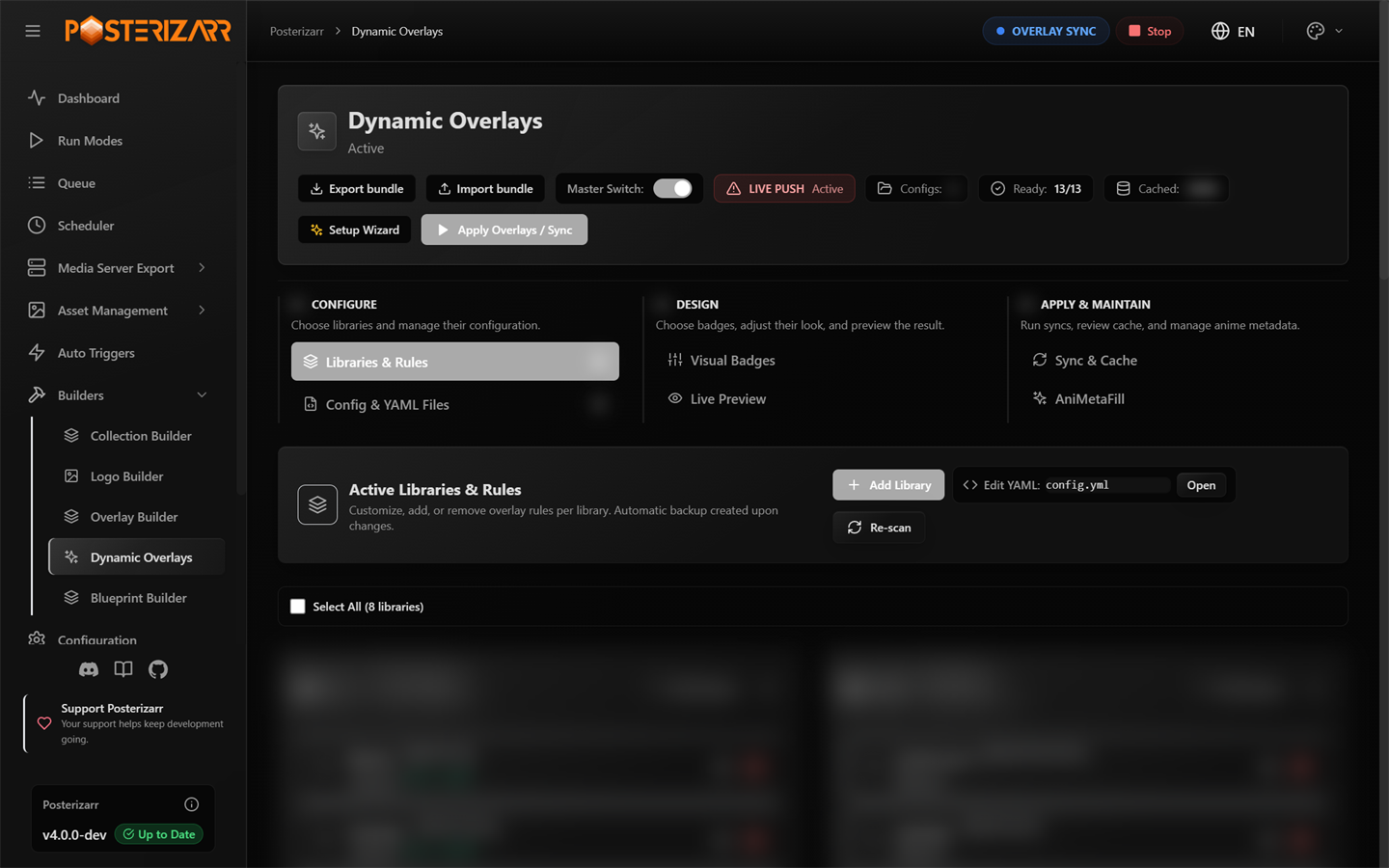
Choose Builders > Dynamic Overlays > Libraries & Rules to scope configurations to libraries and artwork formats.
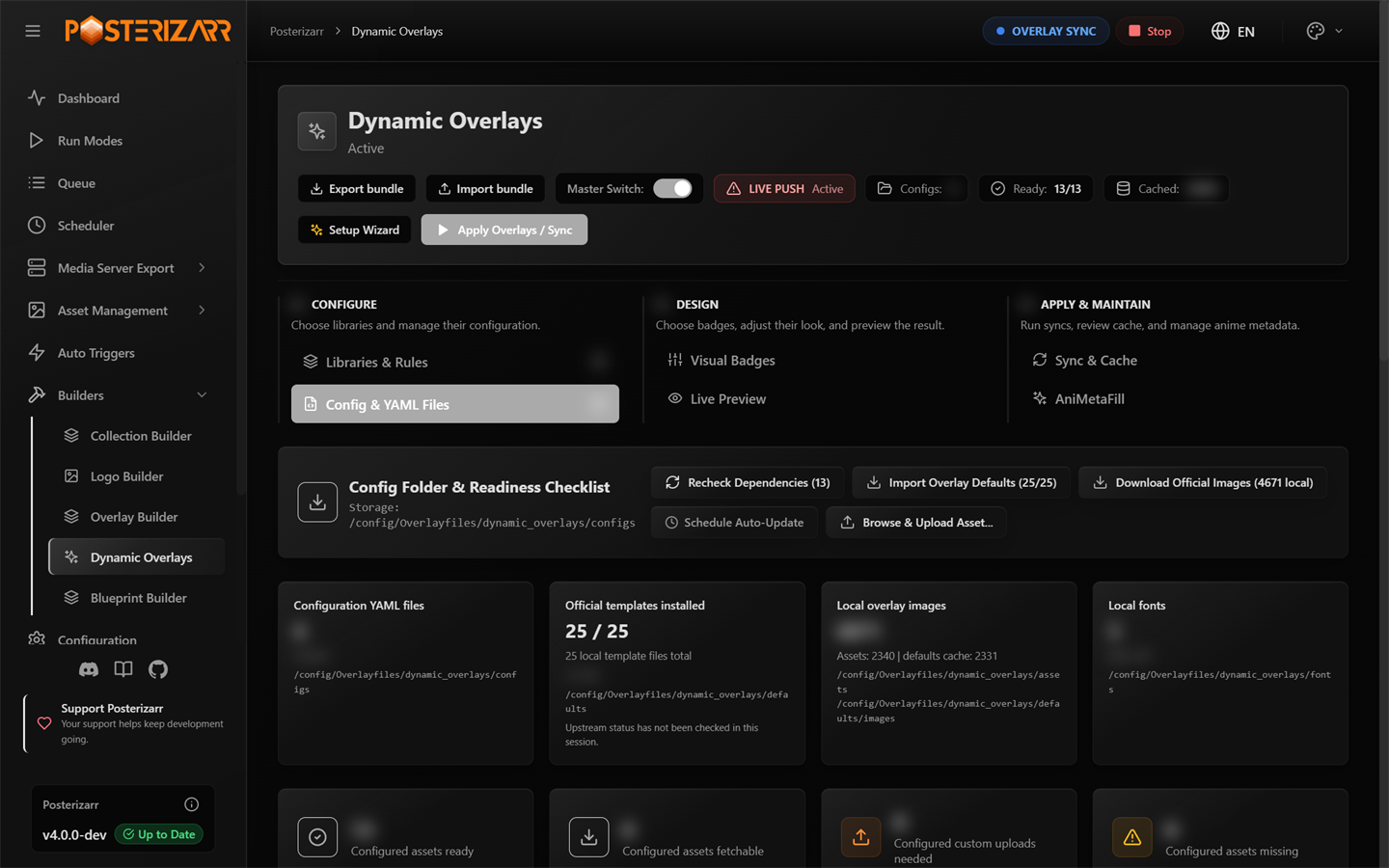
Choose Config & YAML Files to import supported rules, manage assets and fonts, and check readiness.
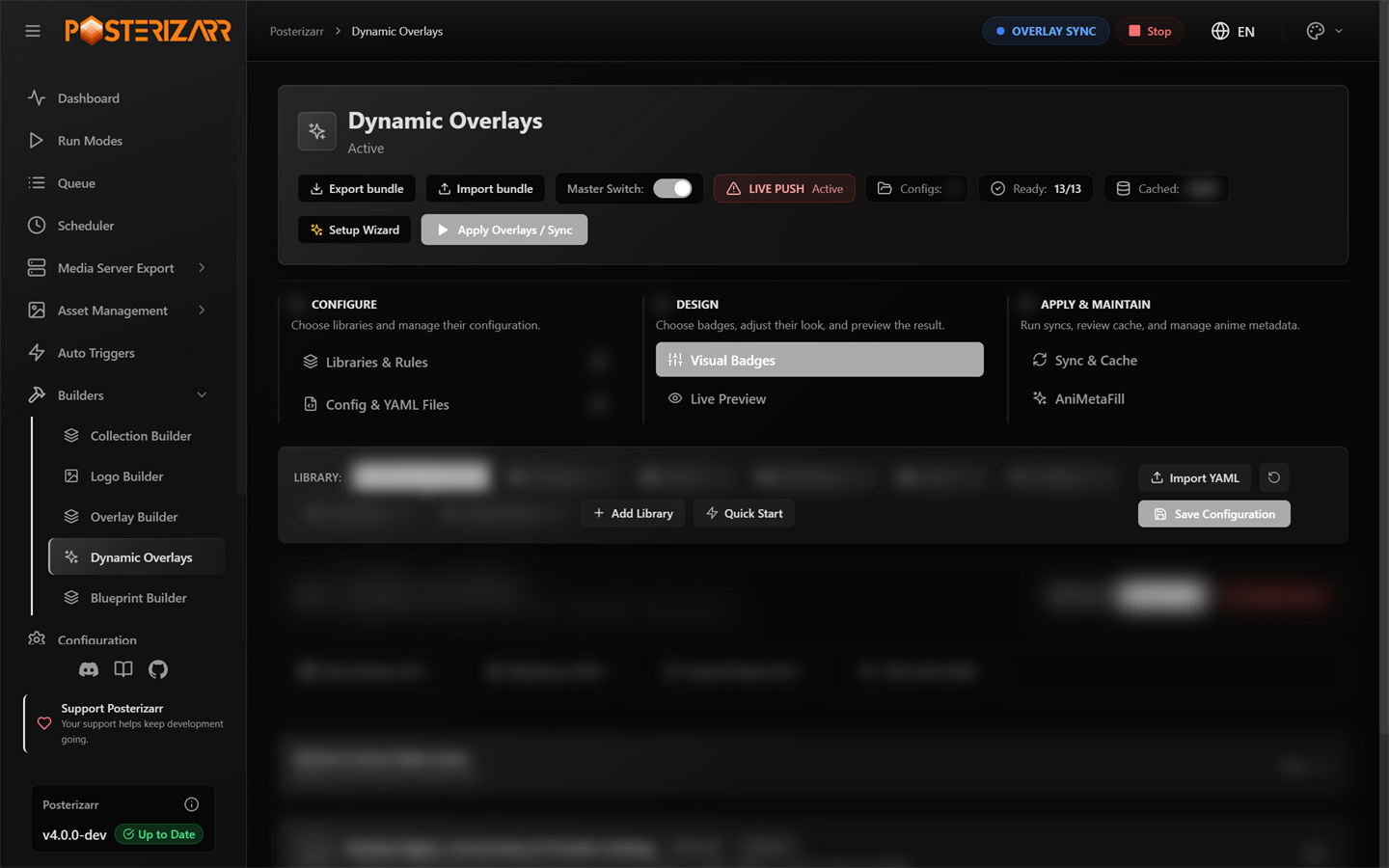
Choose Visual Badges to configure badge appearance and layout.
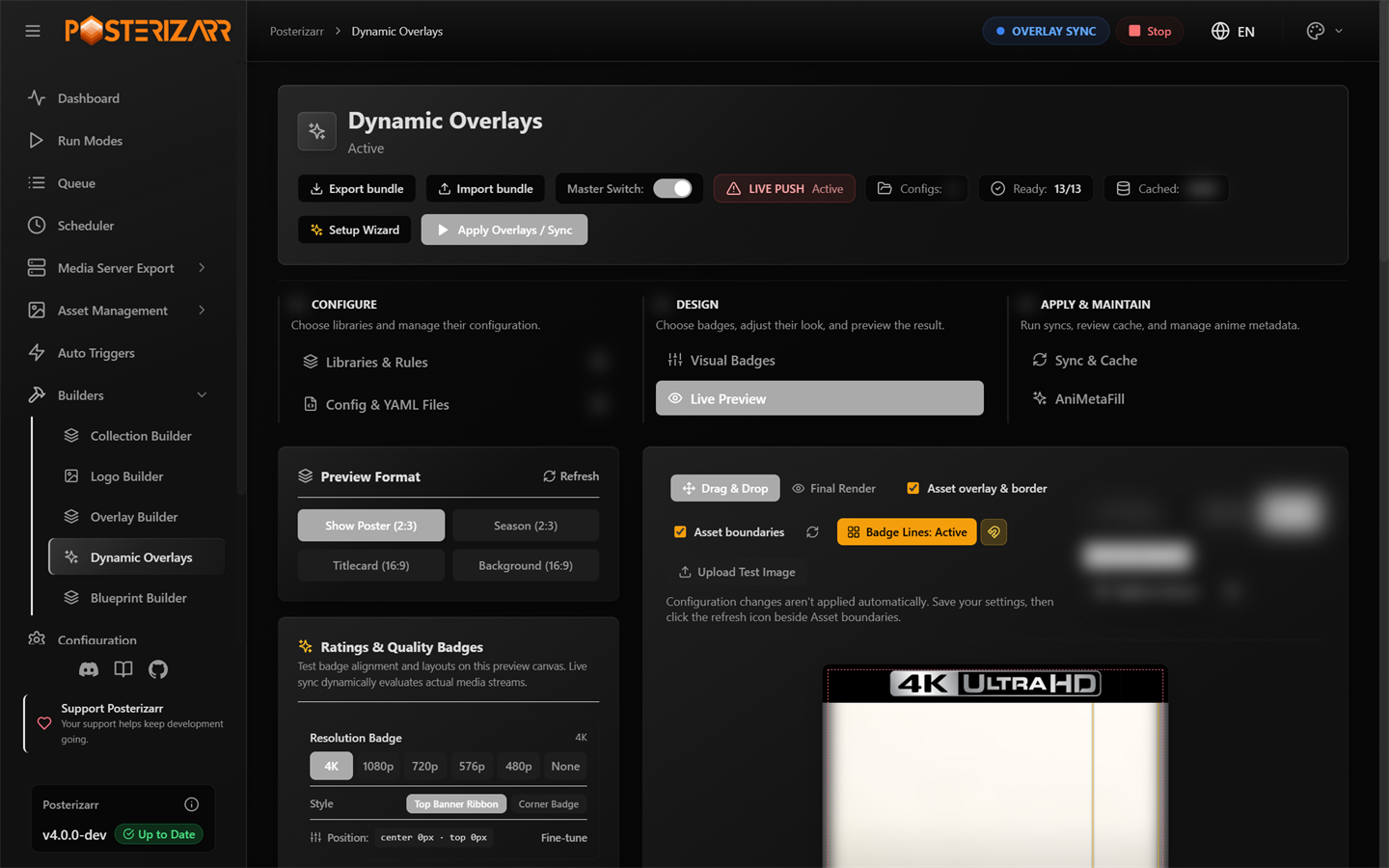
Choose Live Preview to inspect sample artwork and adjust badge placement. Previewing does not upload artwork.
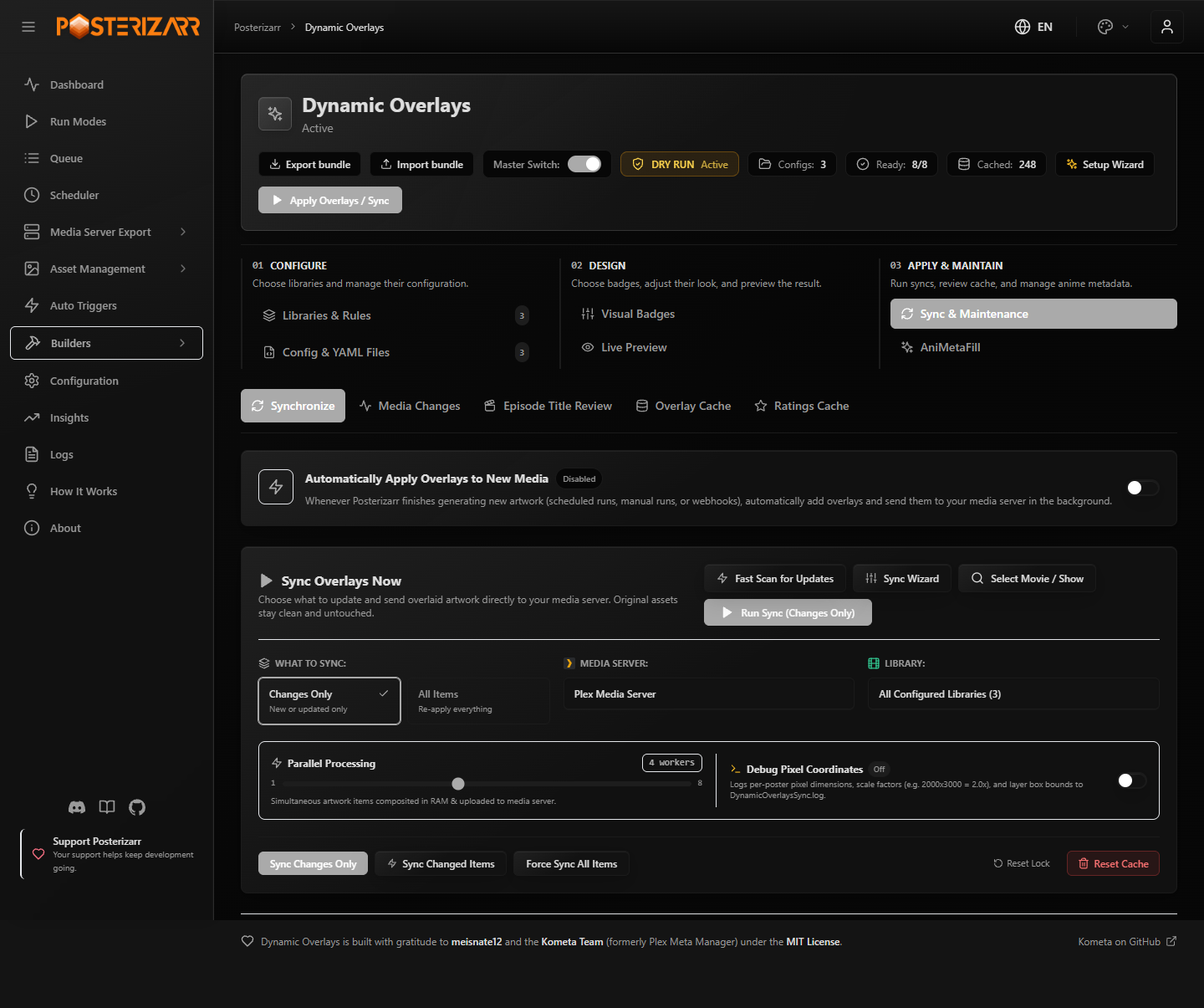
Choose Sync & Maintenance for the separate Synchronize, Media Changes, Asset Title Review, Overlay Cache, and Ratings Cache views. The screenshot shows Synchronize with Dry Run on and illustrative library counts.
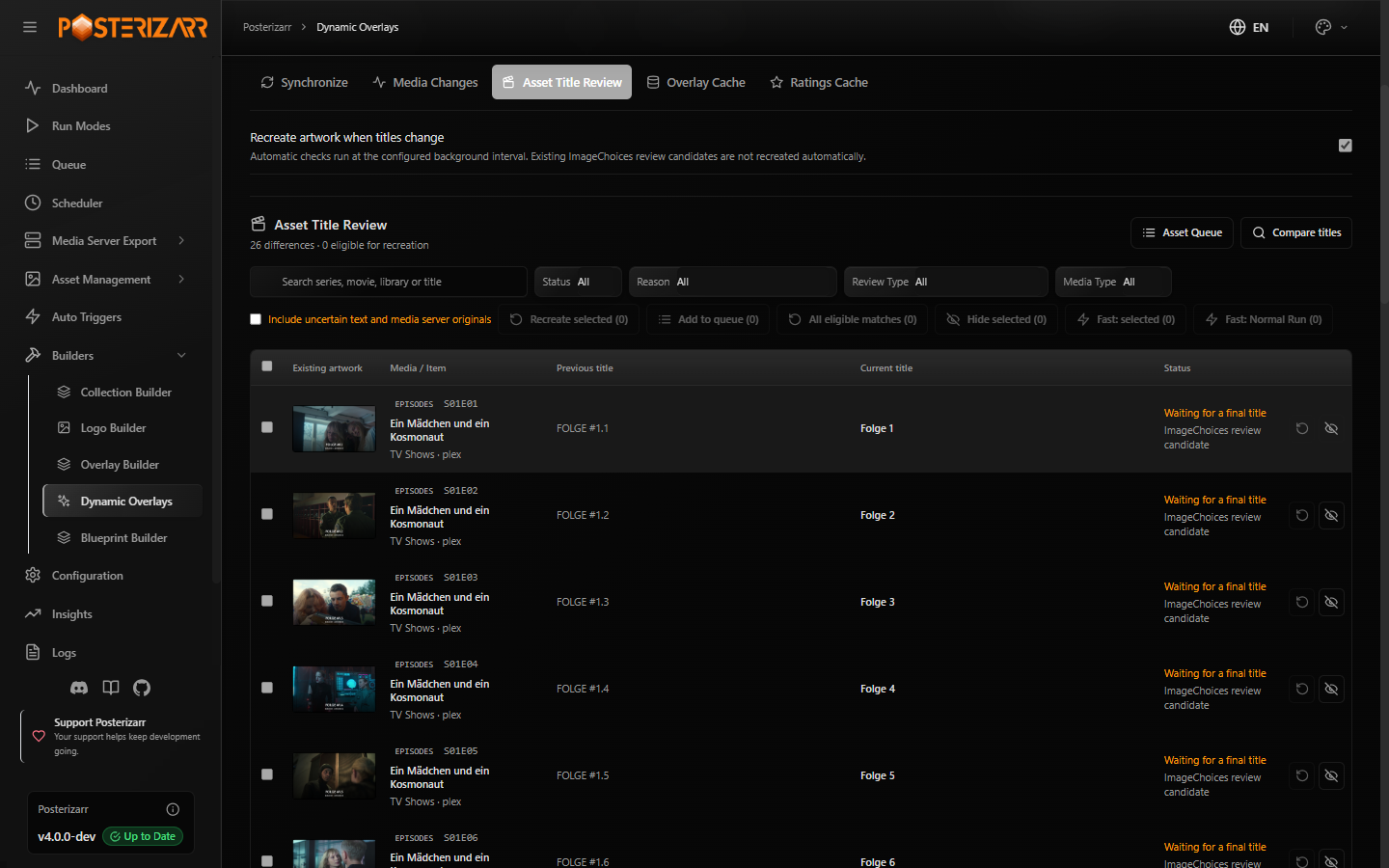
Asset Title Review compares existing text-enabled movies, shows, seasons, and
titlecards with current media-server titles and filters by eligibility, blocking
reason, historical/future status, or media type (All Types, Episodes,
Seasons, Movies, Shows). Supports bulk Hide selected, queued
rebuilds, and confirmed Fast Normal Run actions without recreating artwork on
the initial scan.
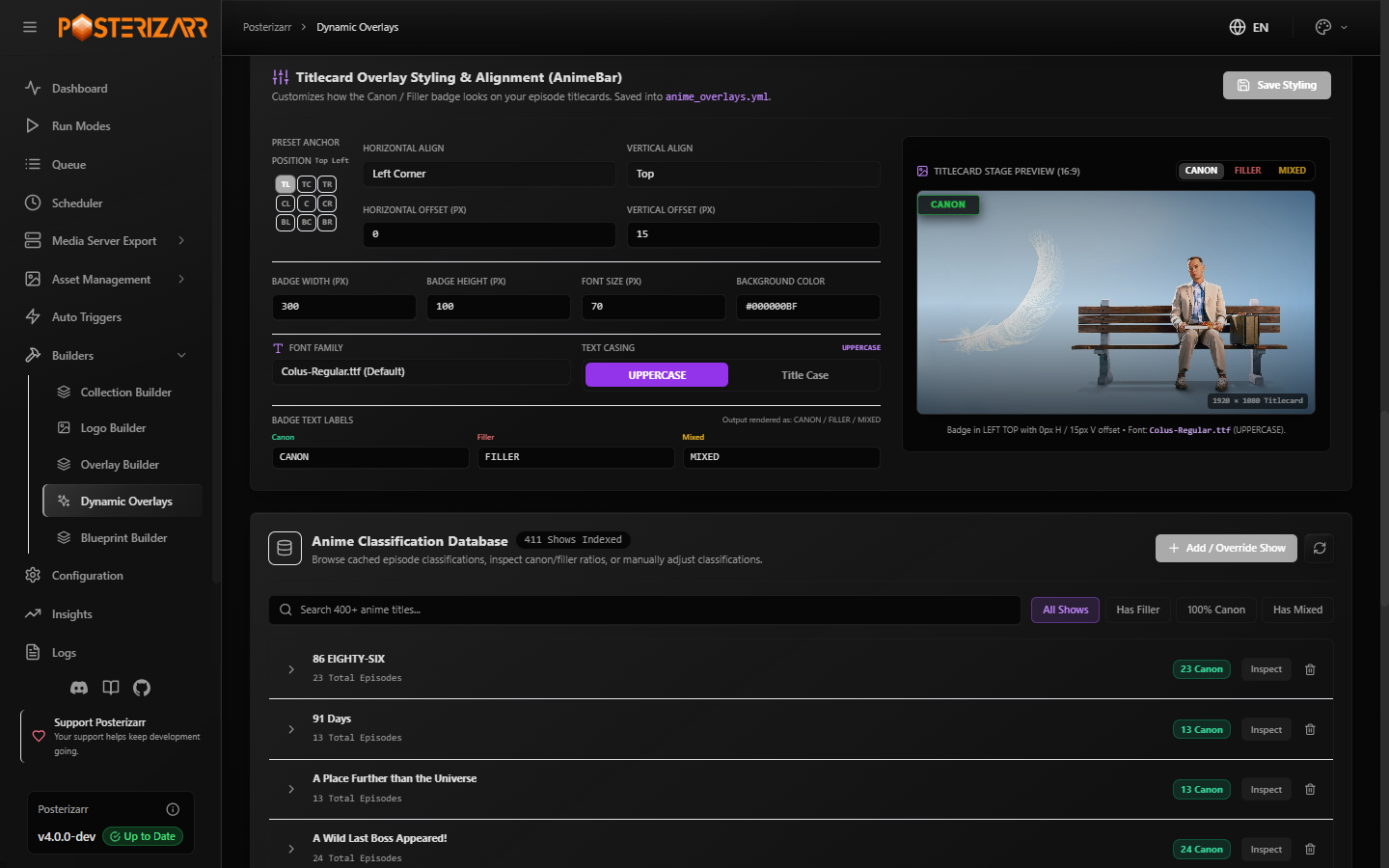
Choose AniMetaFill under Dynamic Overlays to configure Canon, Filler, and Mixed episode scanning, preview 16:9 titlecard badges live, toggle overlay categories, set per-show thresholds, and manage manual overrides in the Anime Classification Database.
Start with Dry Run and a narrow library/item scope. The Dynamic Overlays guide documents rating sources, local IMDb datasets and episode mappings, bundles, cache refresh, retry behavior, and Kometa compatibility limits. Other builders are described in Blueprints and recipes, Logo Builder and logo workflows, and the capabilities guide.
Schedule, Trigger, and Diagnose
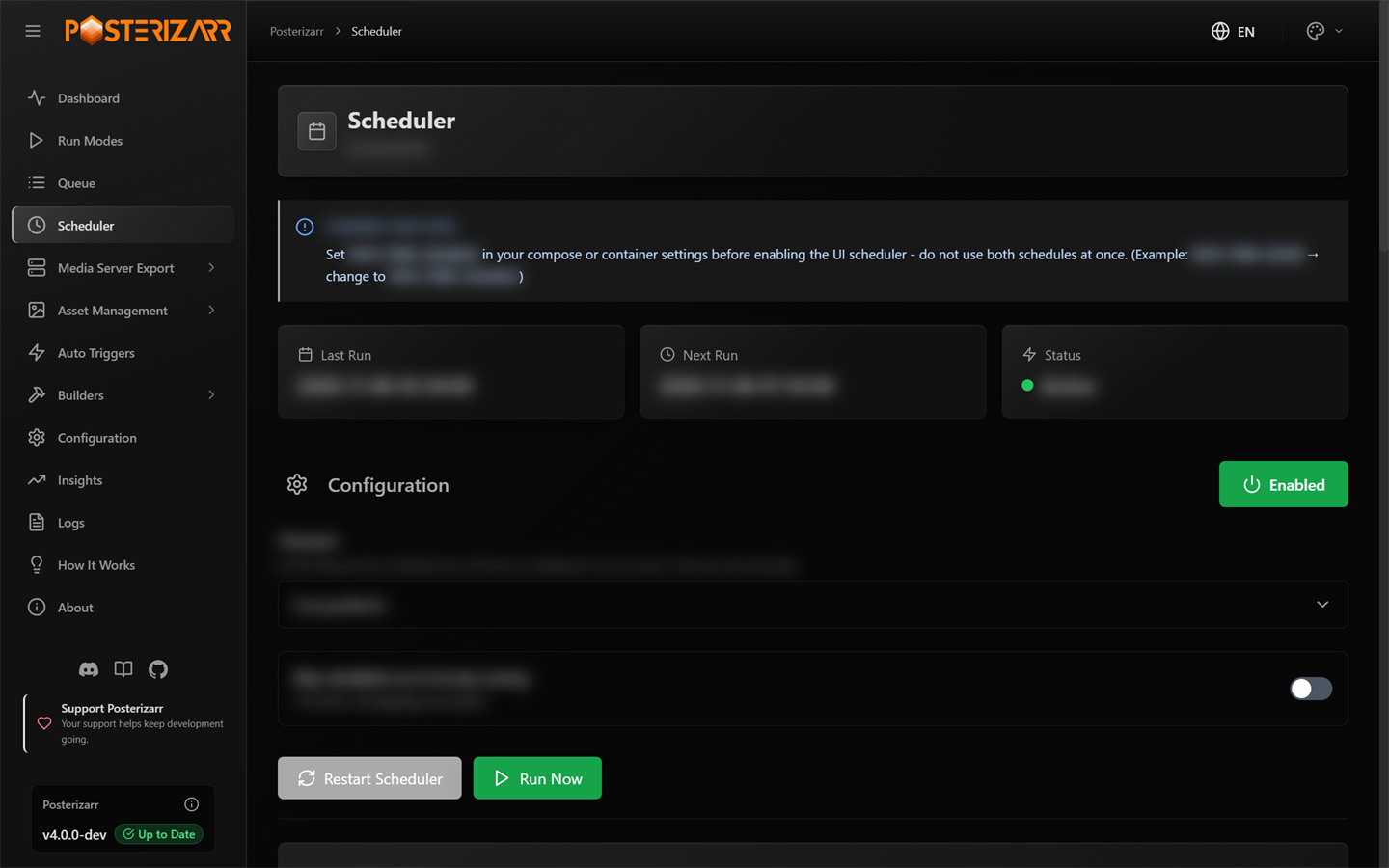
Choose Scheduler to create, enable, or run scheduled tasks. In Docker, disable the container timer with RUN_TIME=disabled before using this scheduler.
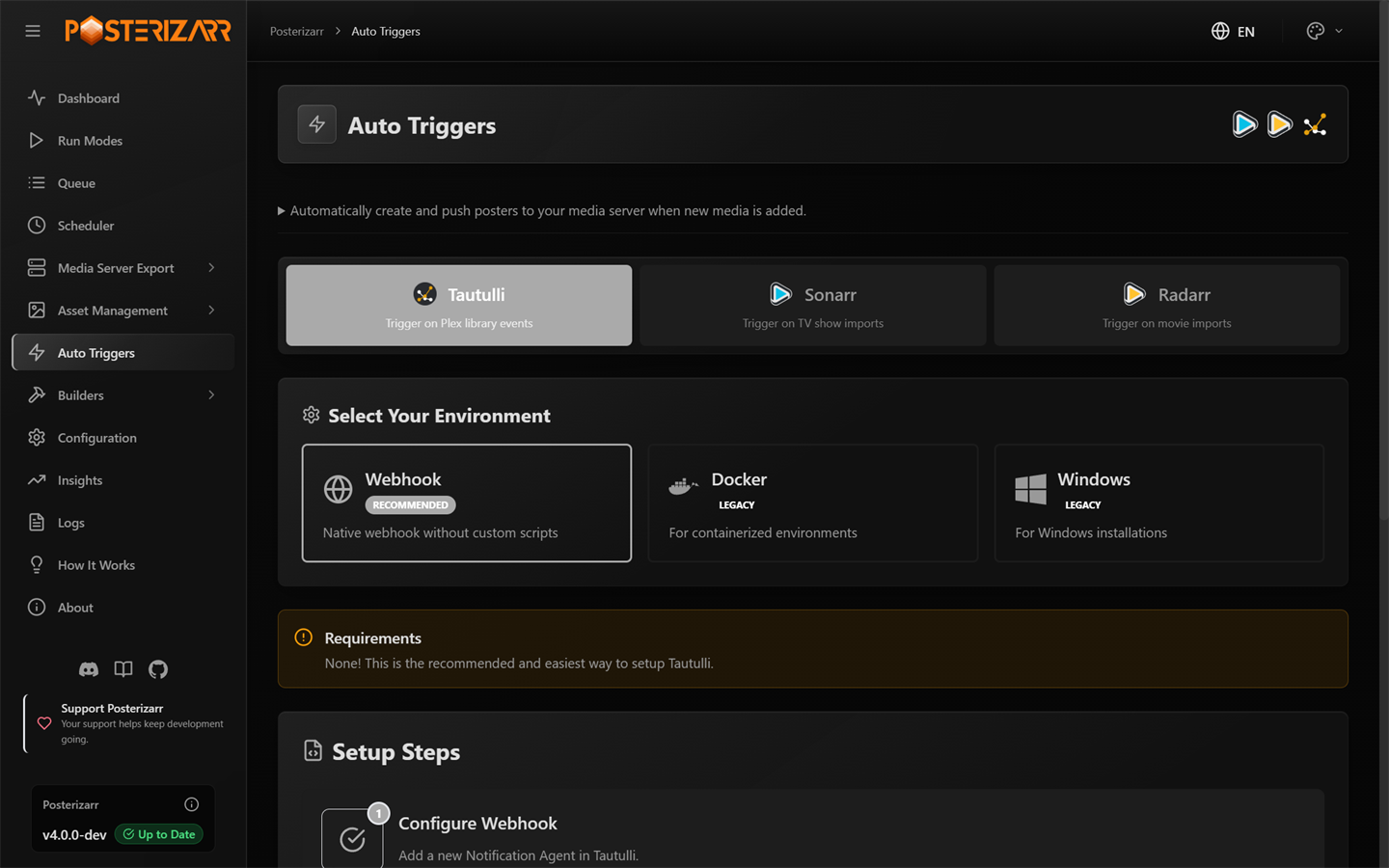
Choose Auto Triggers to configure Tautulli, Sonarr, or Radarr; the native webhook method is recommended.
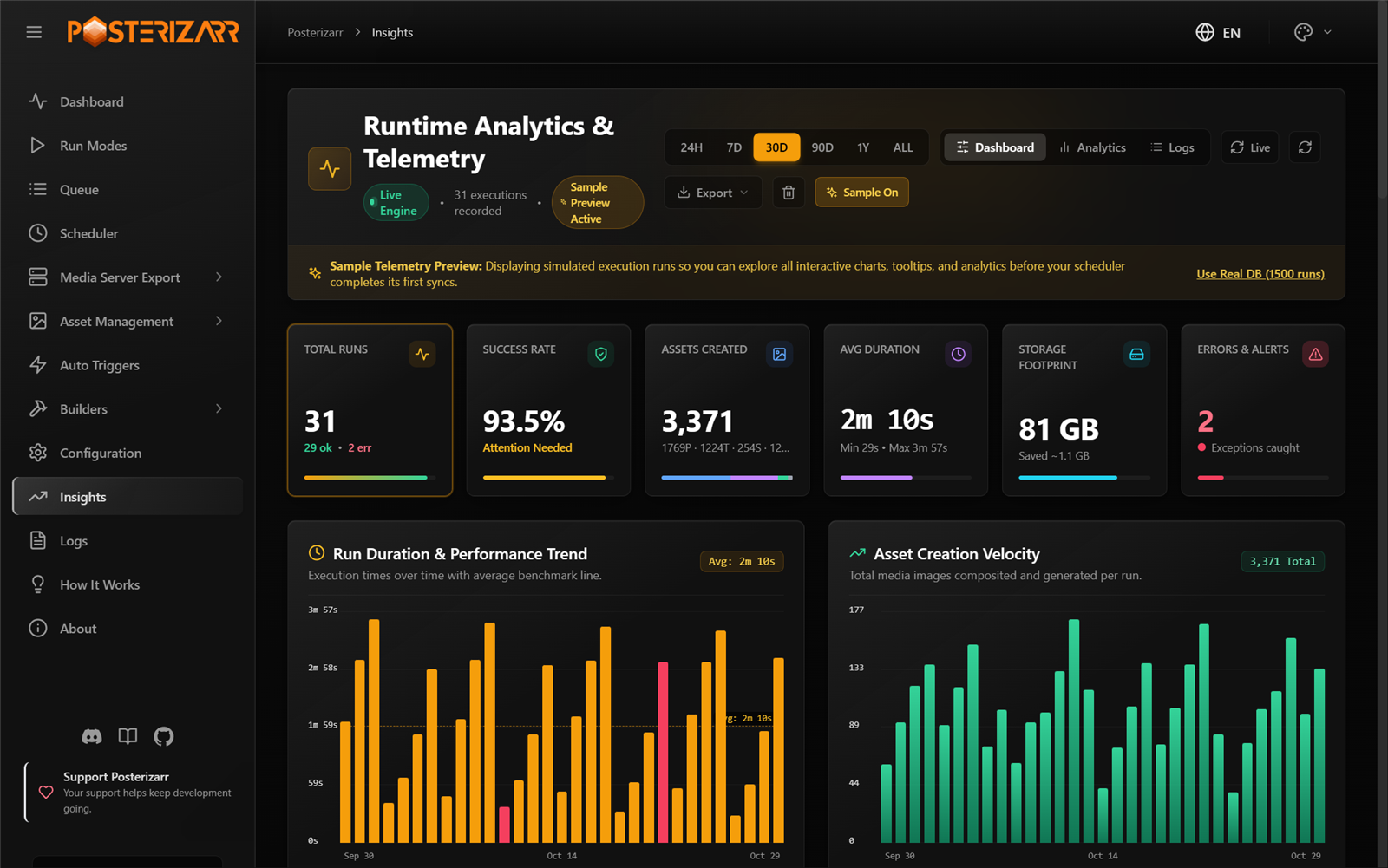
Choose Insights for execution history and analytics with date-range filters (24H, 7D, 30D, 90D, 1Y, ALL), aspect-aware asset thumbnails (16:9 vs 2:3), and interactive Sample Telemetry Preview (demo data).
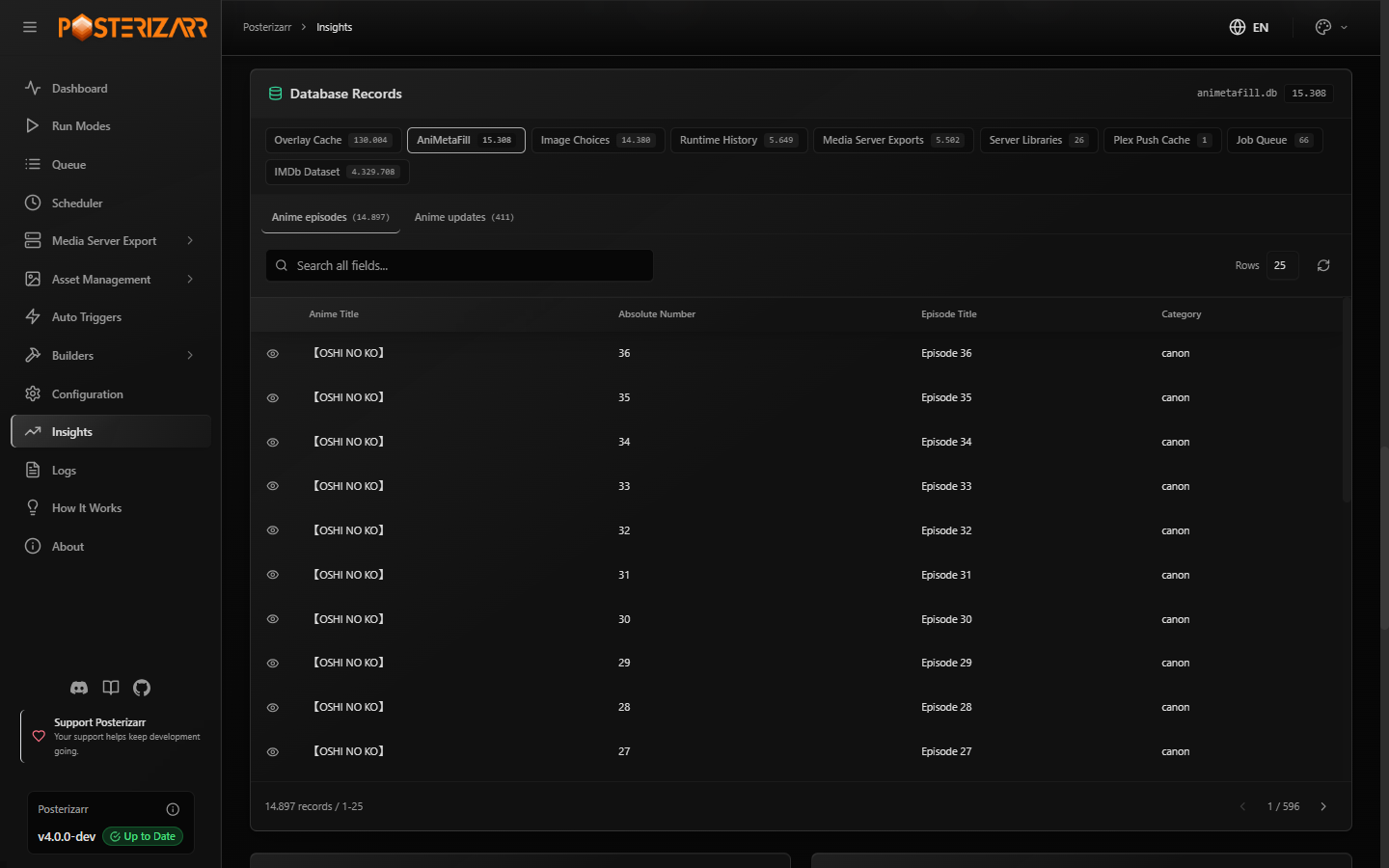
Scroll to System Databases and Database Records in Insights for a read-only, searchable, sortable, paginated browser across Posterizarr's SQLite databases (overlay_cache.db, animetafill.db, imagechoices.db, runtime_stats.db, media_export.db, server_libraries.db, plex_push_cache.db, queue.db, and imdb_dataset.db; config.db is excluded for security).
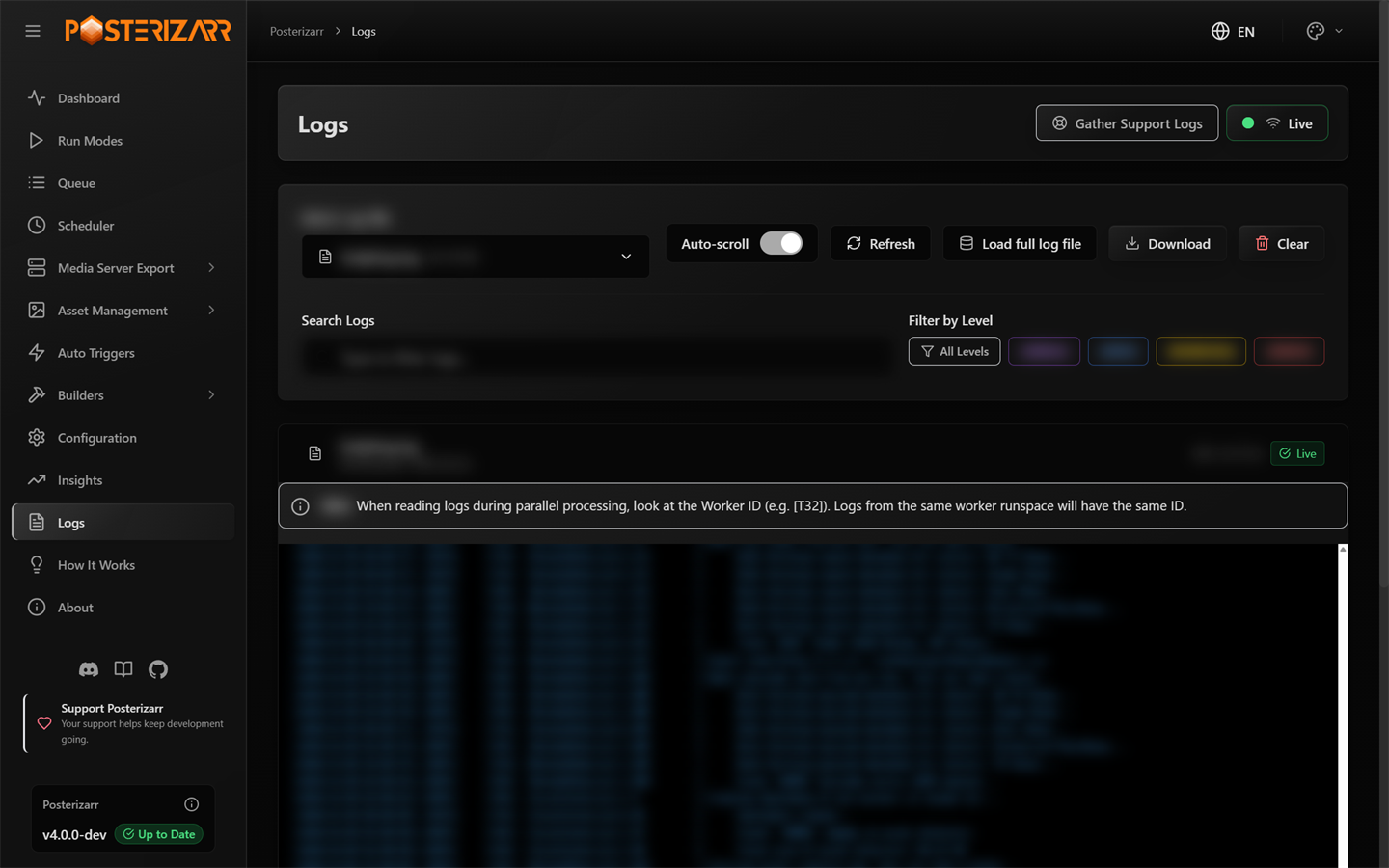
Choose Logs to find errors, download logs, or gather support information.
Schedule only after a small run has produced the expected result. The automation guide, networking guide, and FAQs cover external services, troubleshooting, and legacy command line workflows.
In-App Help and Build Information
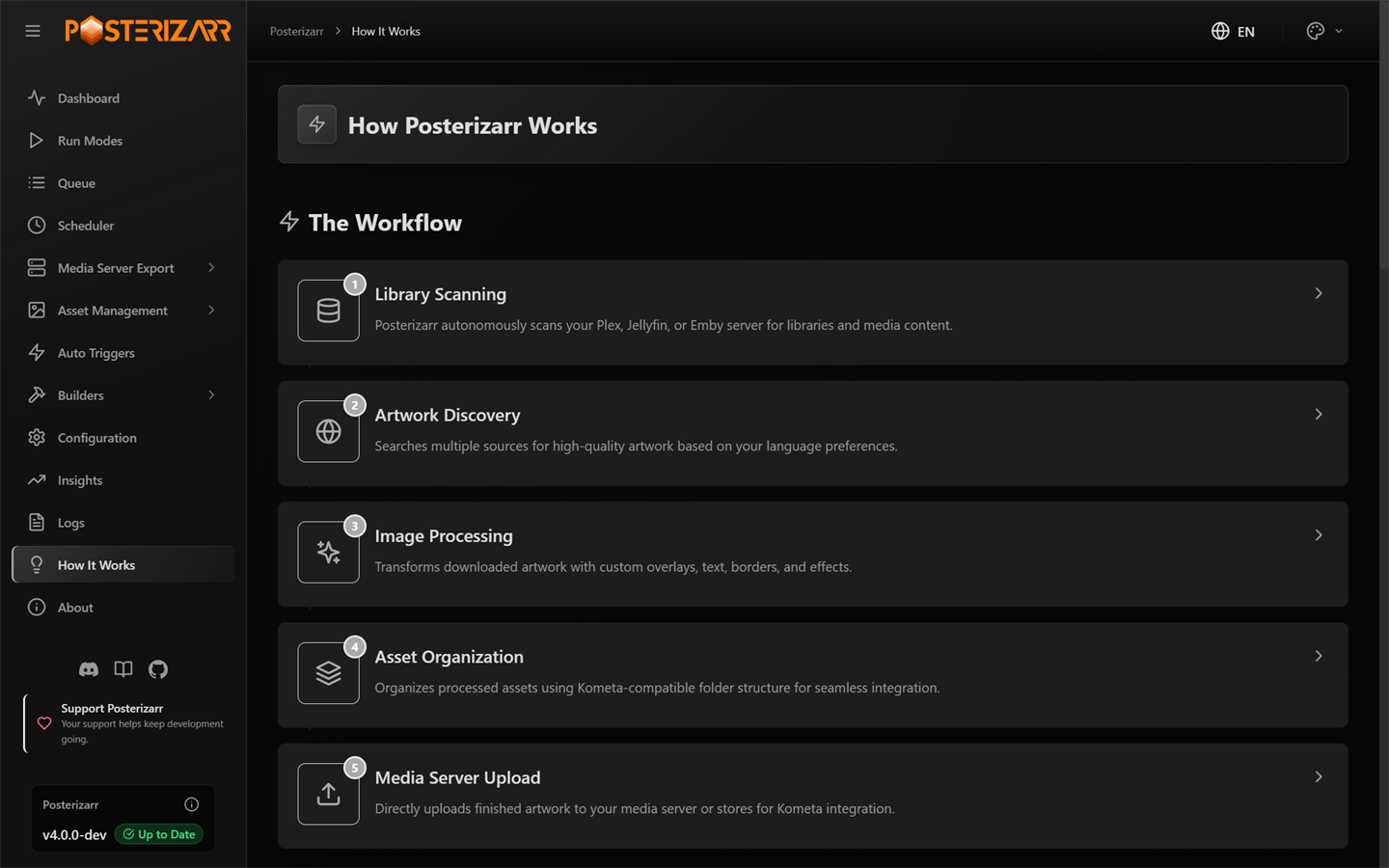
Choose How It Works in the sidebar for the in-app workflow overview.
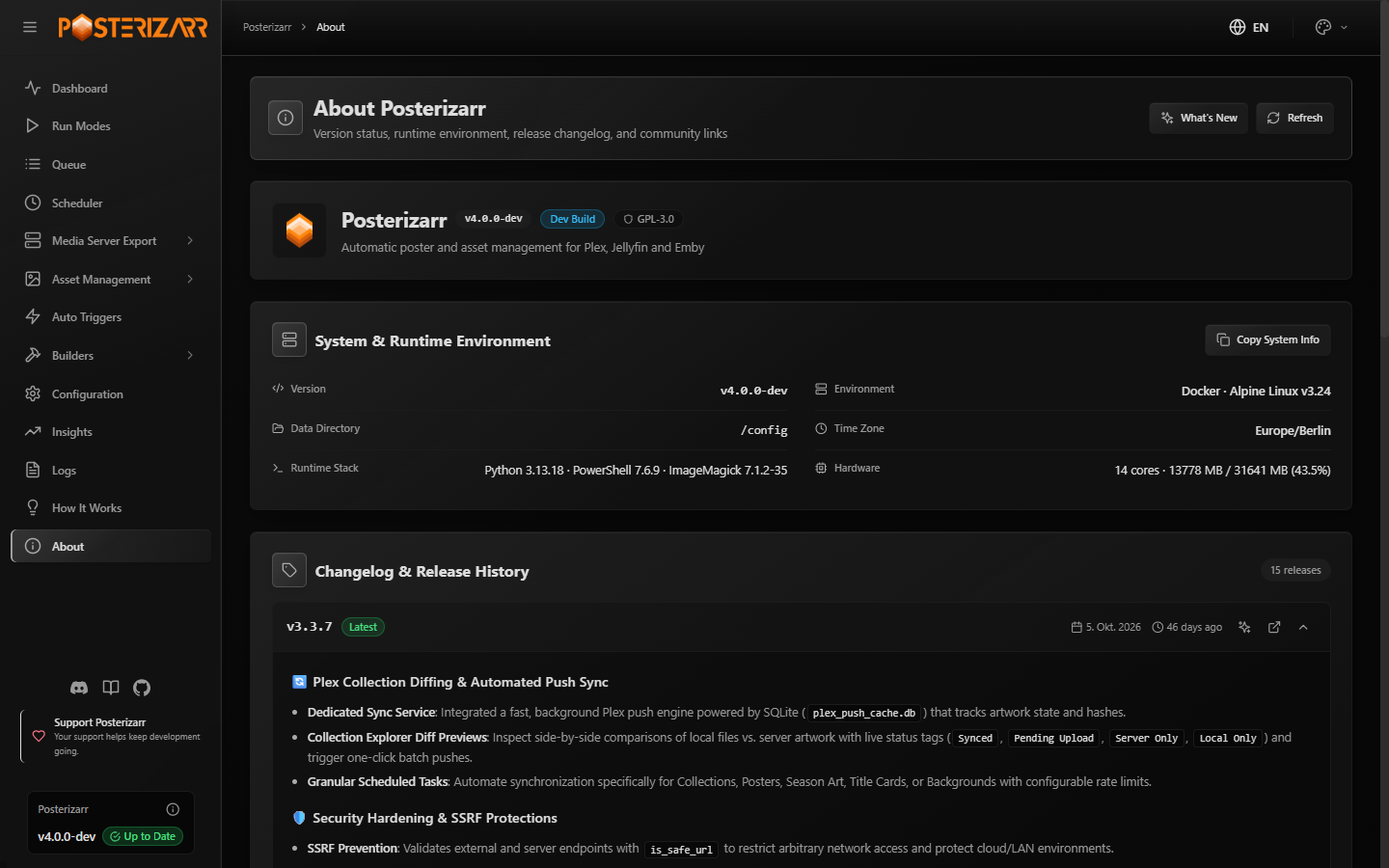
Choose About in the sidebar for live System & Runtime Environment details (version, Docker/OS environment, data directory, time zone, Python/PowerShell/ImageMagick stack, CPU/memory), one-click sanitized Copy System Info, inline expandable Changelog & Release History, and the What's New button to reopen the one-time post-update release notes dialog shown after upgrading to a new stable release.